Member records
Membership admins can edit records in the new membership module. Membership viewers and Sale admins can read them. See the module overview to sign in.
Find a member
The Members screen has a membership-status selector, a filter and an export link. Type in Filter to narrow the roster. Choose All, Active or Expired under Membership. Select a column heading to sort; select it again to reverse the order.
Membership admins, Membership viewers and Sale admins can search and read member records. Export is available to Membership admins and Membership viewers.
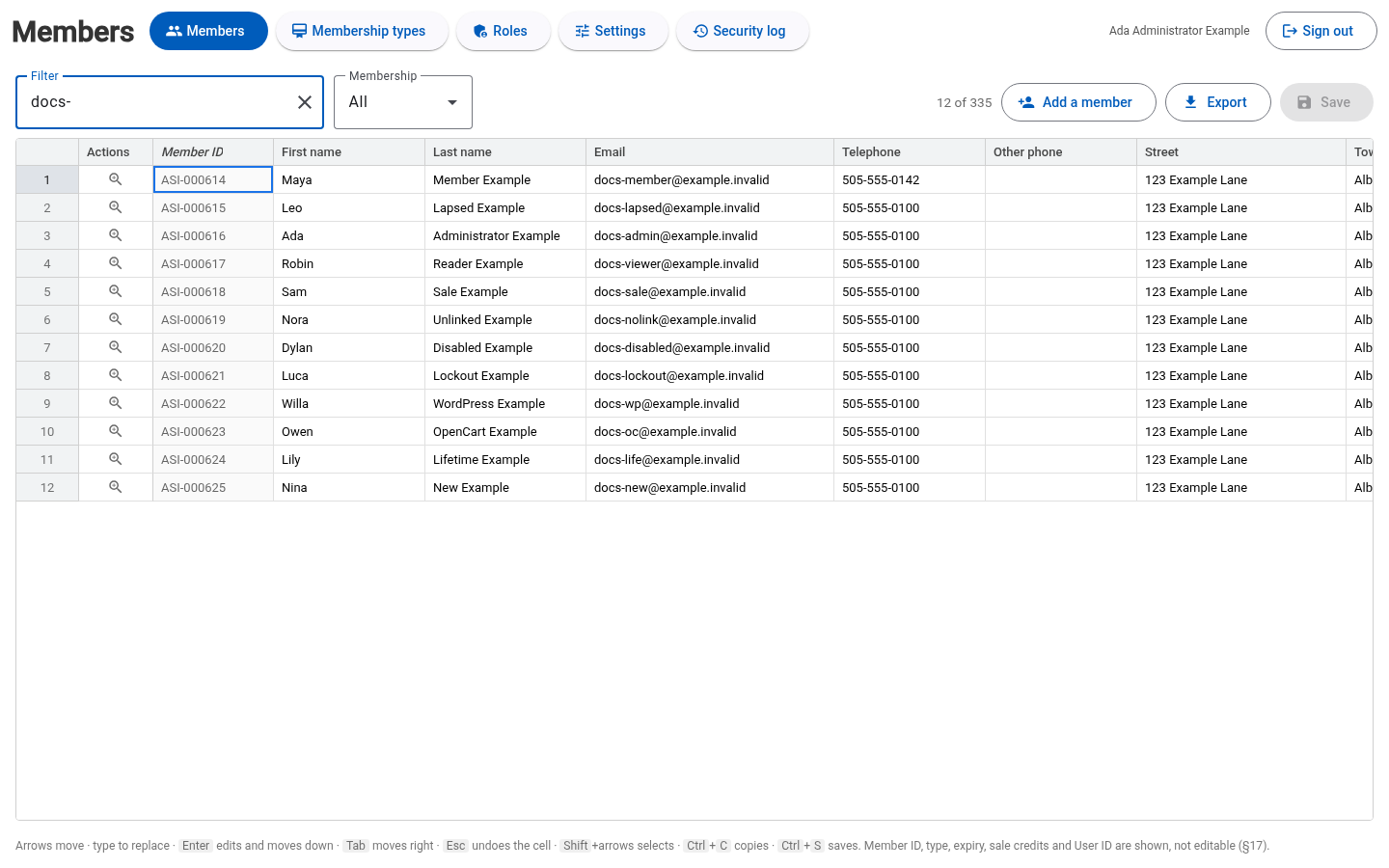
Membership admins can edit contact cells directly in the roster. Double-click a cell or select it and press Enter, change the value, then leave the cell to finish editing. Changed cells are marked and Save shows the number of changed rows. Select Save or press Ctrl+S to store them. Check the result before leaving the screen.
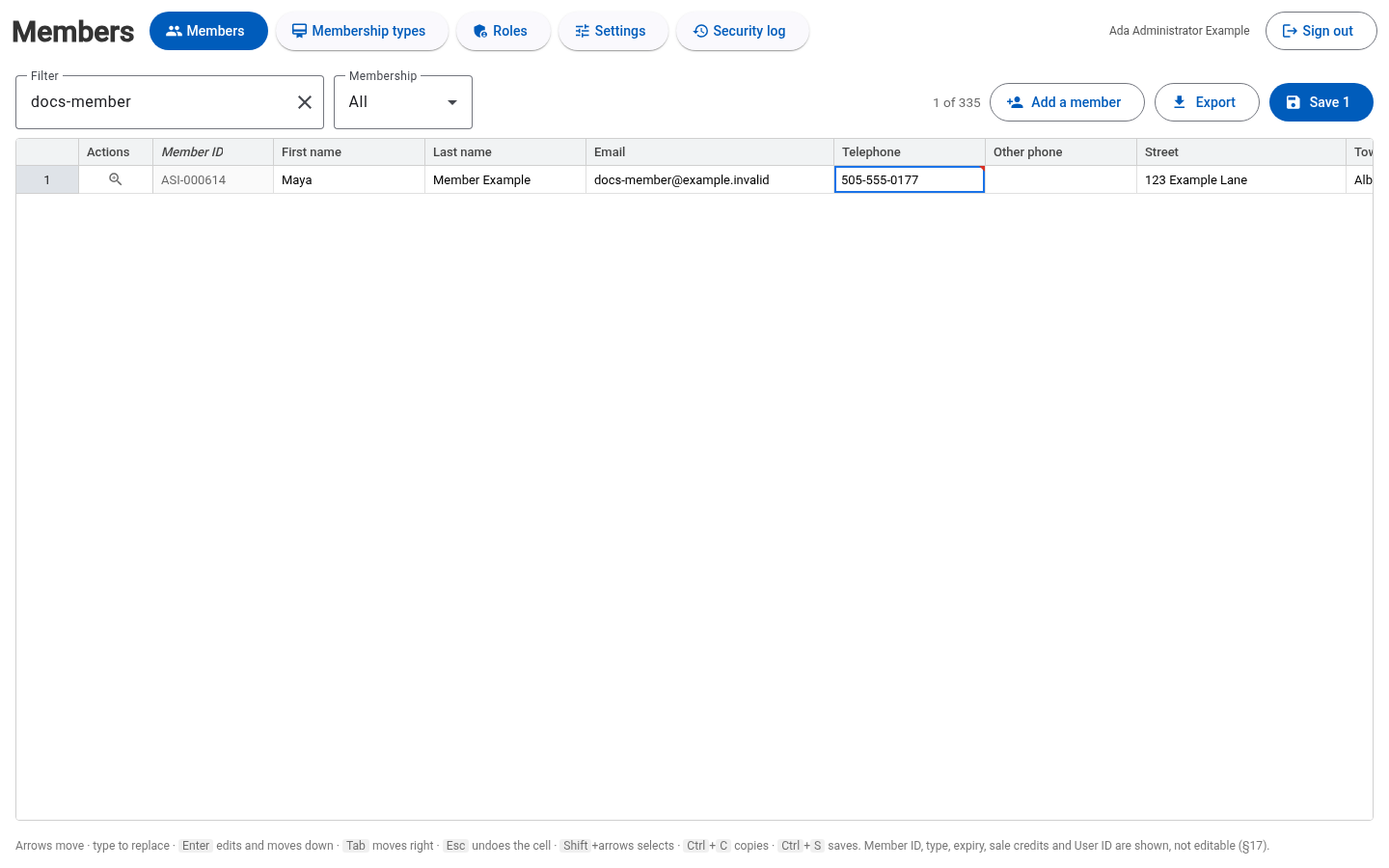
Member ID, membership type, expiry and User ID are read-only in the roster. Sale credits can be edited there too. Open Full record for membership and account changes. See Memberships for membership dates and Account assistance for User ID and credit help.
Open and save a record
Select Full record on a member's row. Membership admins can edit contact details and select Save. The example changes Maya's telephone number.
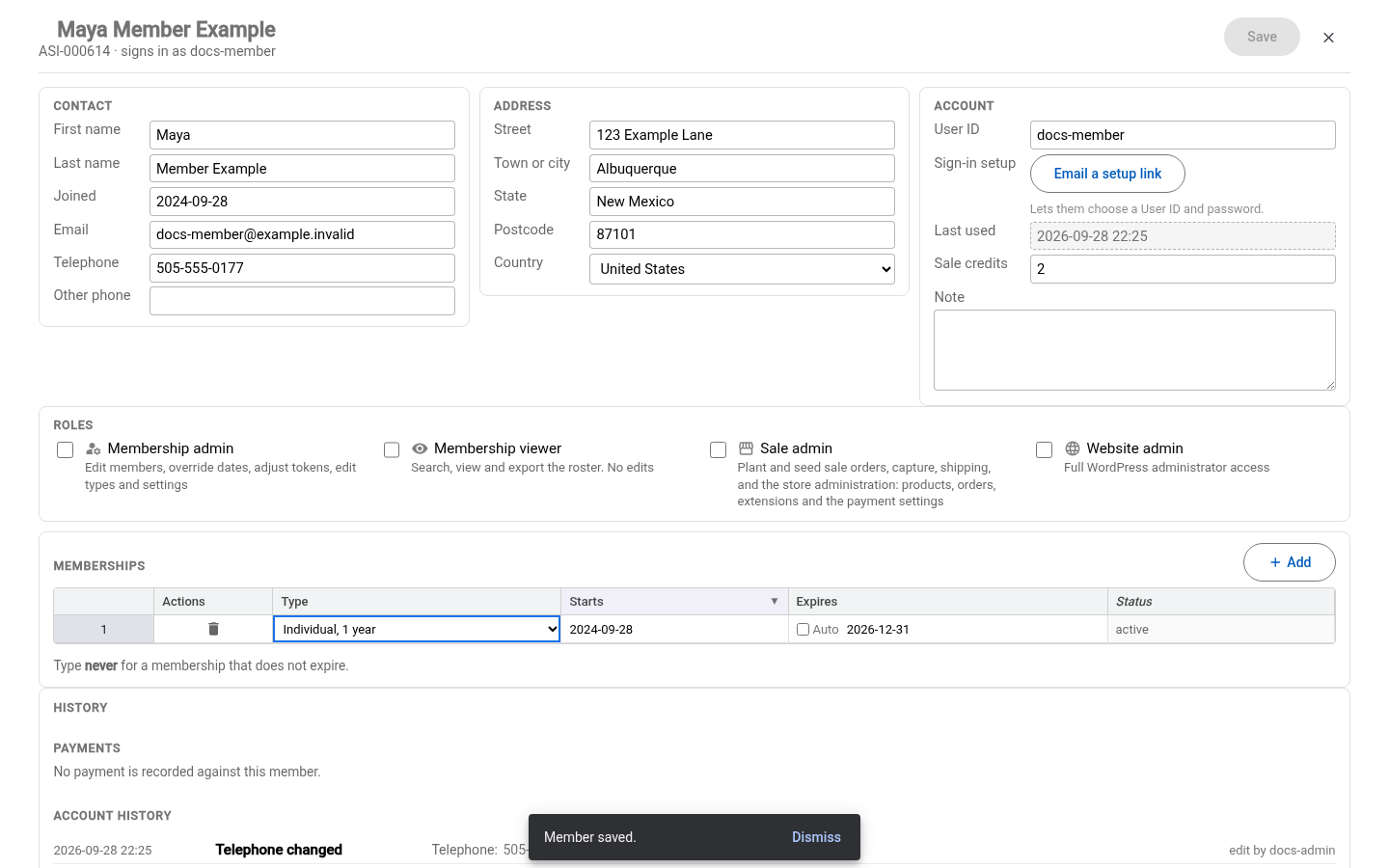
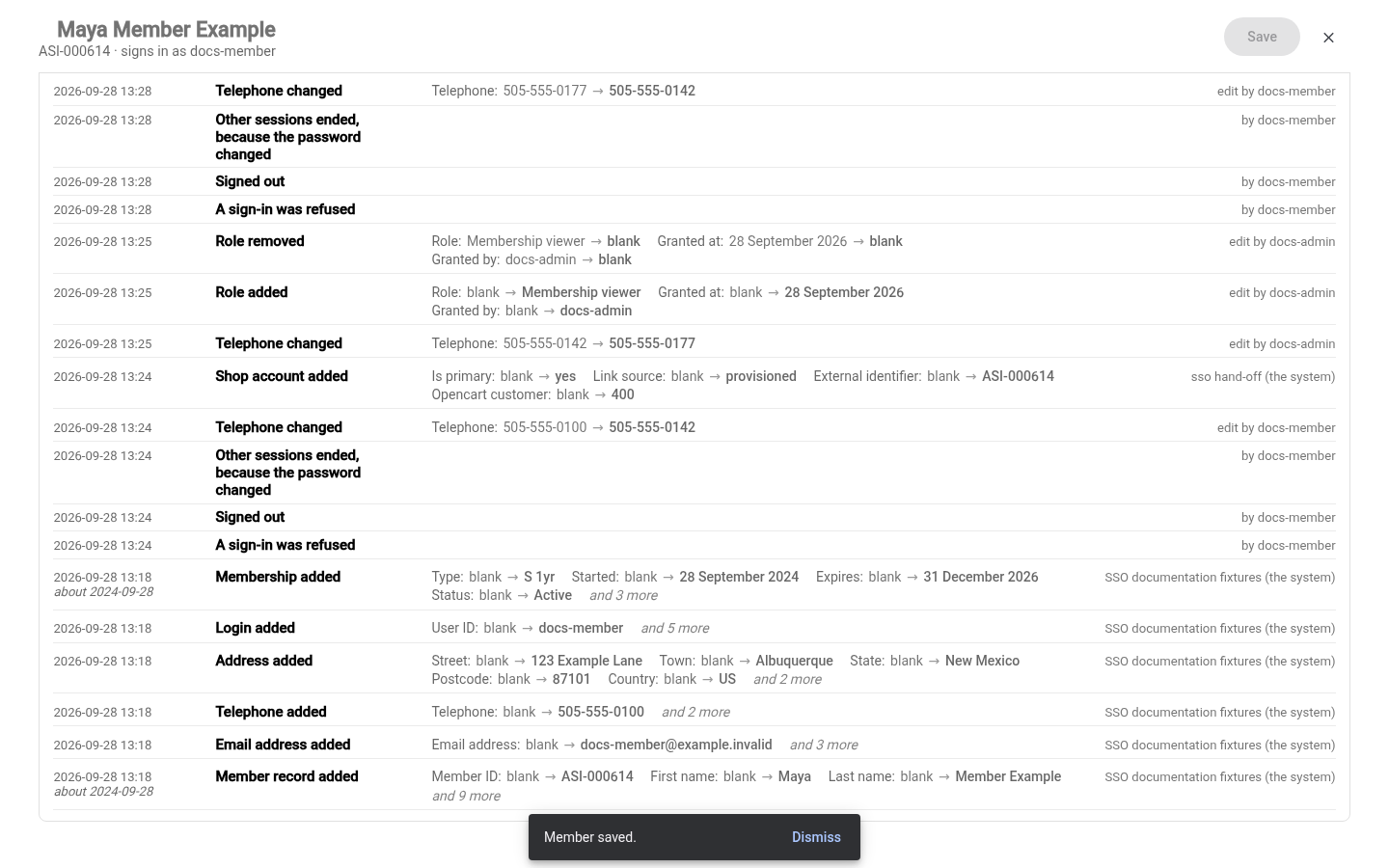
Scroll down within the record to read the membership information and change history. The history shows what changed and who made the change. Member payment history is visible to Membership admins and Membership viewers.
Select Close to return to the roster. Export downloads the filtered roster as CSV.