Signing in as a member
This illustrated example follows Maya Member Example, a fictional active member, through signing in, managing her account and shopping. The screenshots show the proposed site for review before deployment; they are examples and do not require access to the demonstration site. Use your ASI User ID, which is independent of your email address.
1. Open a protected page
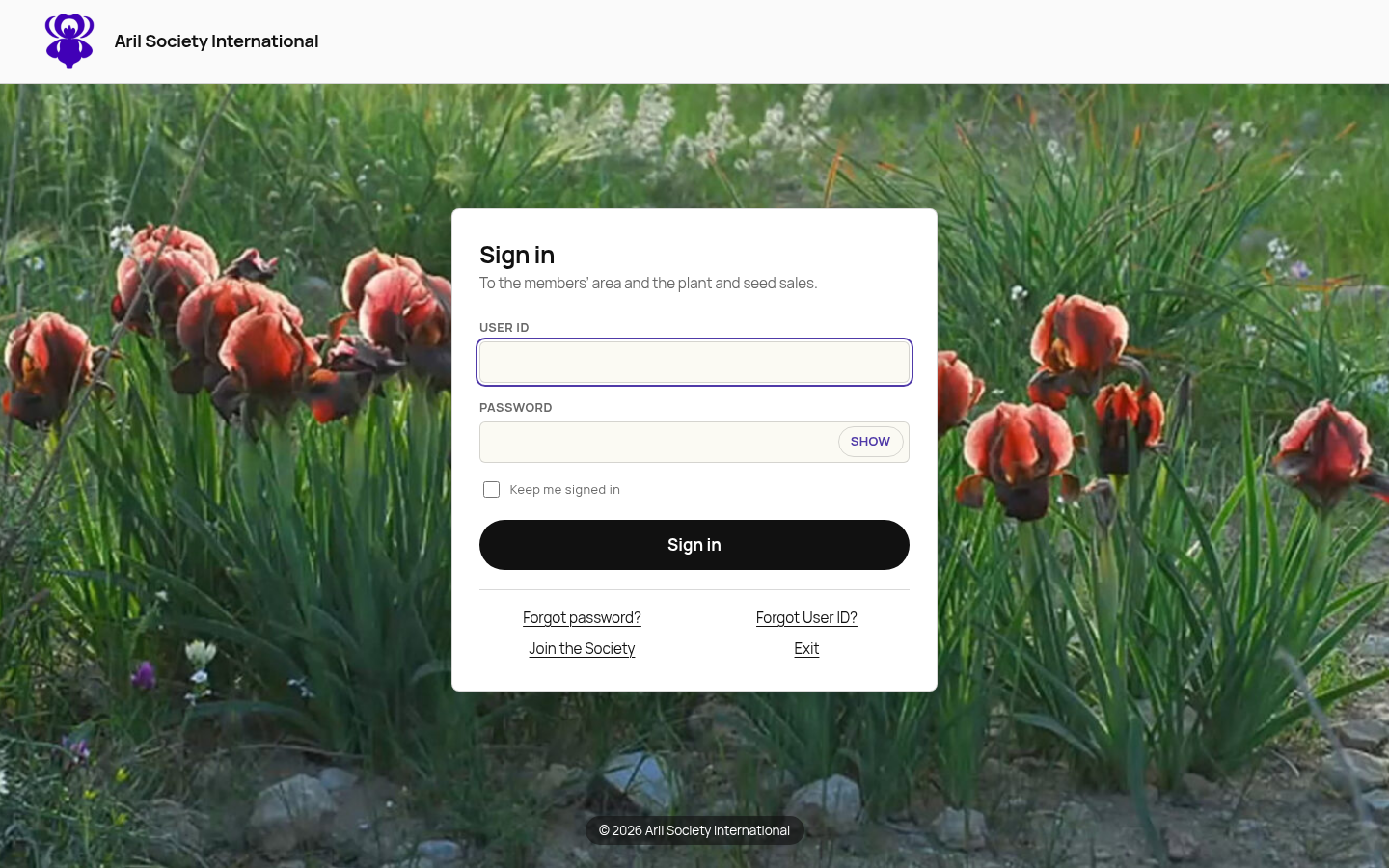
Open the Members Only area from the ASI website. If you are signed out, the website sends you to the central Sign in screen. The requested destination is carried through the login.
Enter your User ID and Password, then select Sign in. Show reveals the password; select it again to hide it. The current setting gives a normal sign-in up to 30 days. Select Keep me signed in to stay signed in without automatic expiry. Signing out or changing your password can still end the session.
Forgot password?, Forgot User ID?, Join the Society and Exit are available here. The recovery guide shows those flows.
2. Correct a failed sign-in
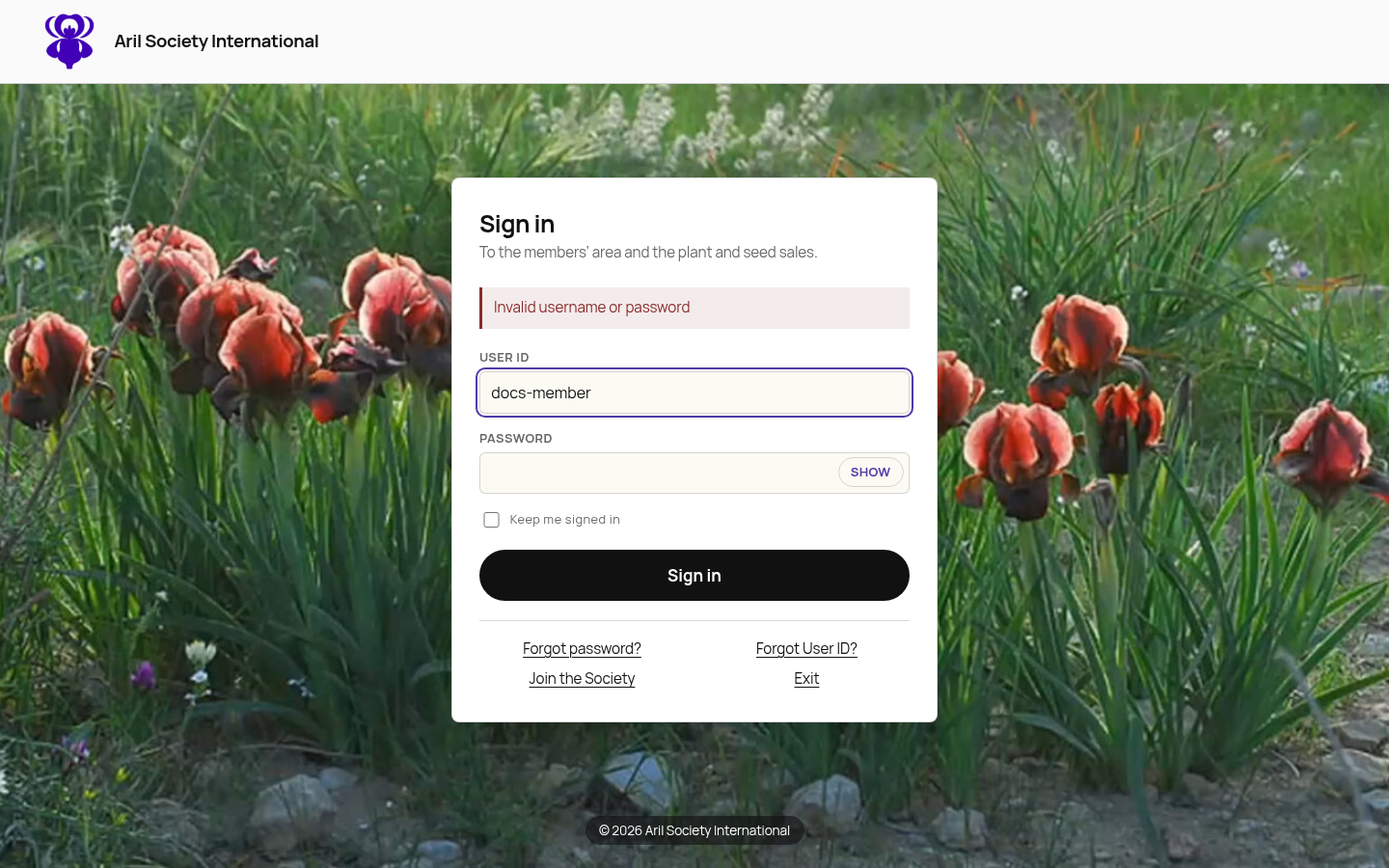
A wrong password, an unknown User ID and a disabled account show the same refusal. The form lets you retry, recover your credentials, join or exit without revealing whether an account exists. Repeated incorrect passwords temporarily lock sign-in.
3. Arrive at Members Only
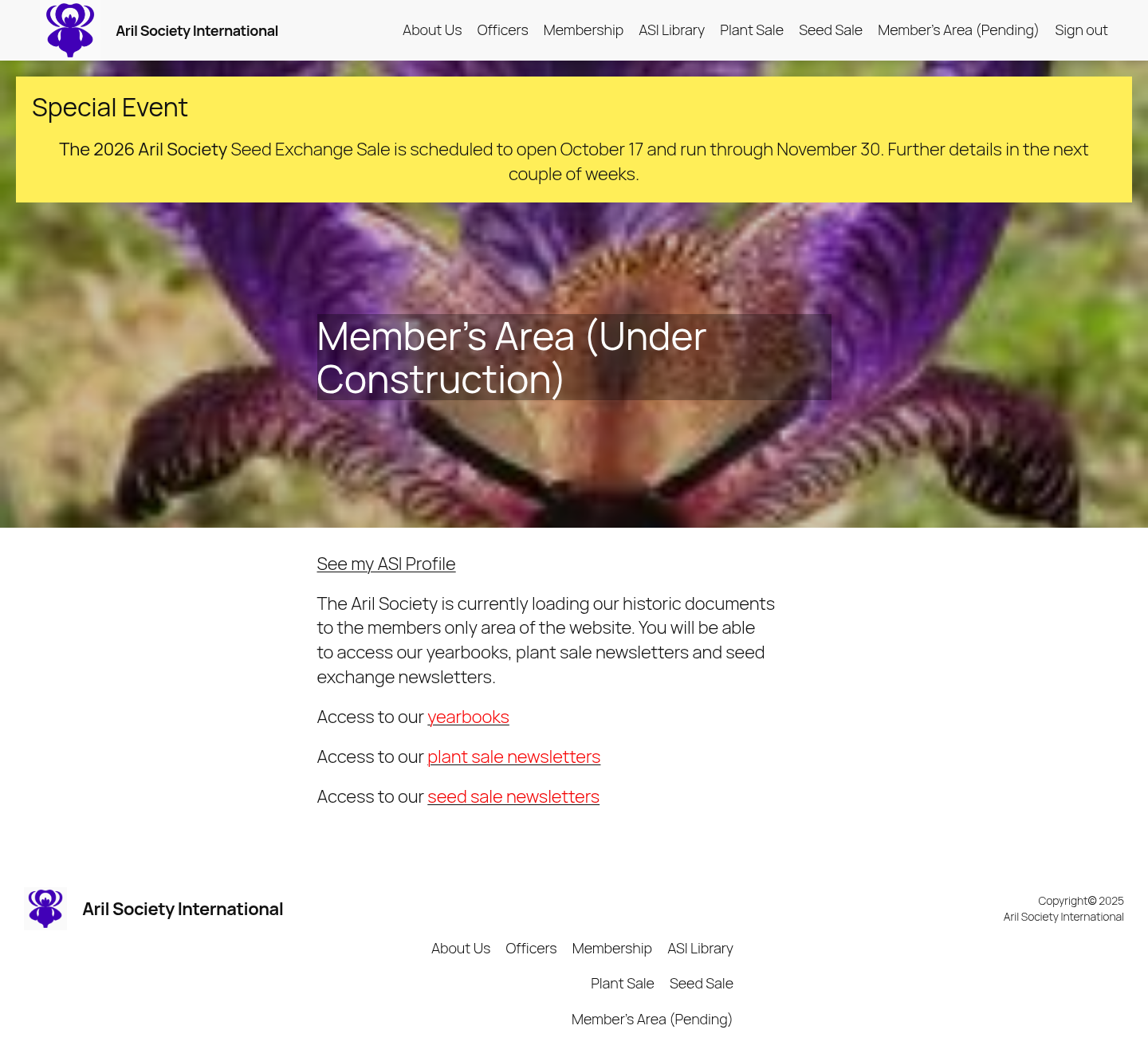
Successful sign-in returns you to the protected page you originally requested. The browser does not ask you to enter a separate WordPress password.
4. Review your account
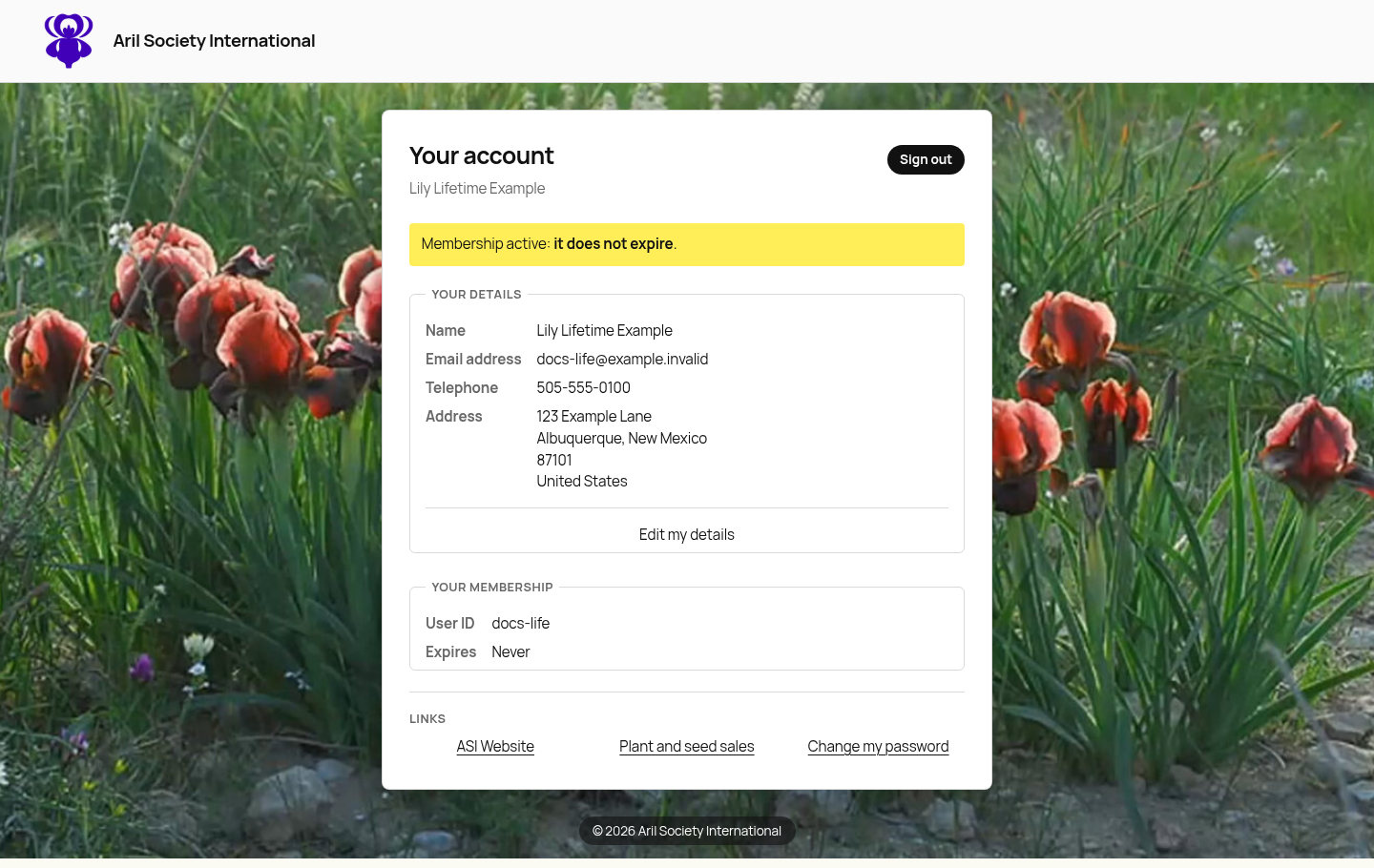
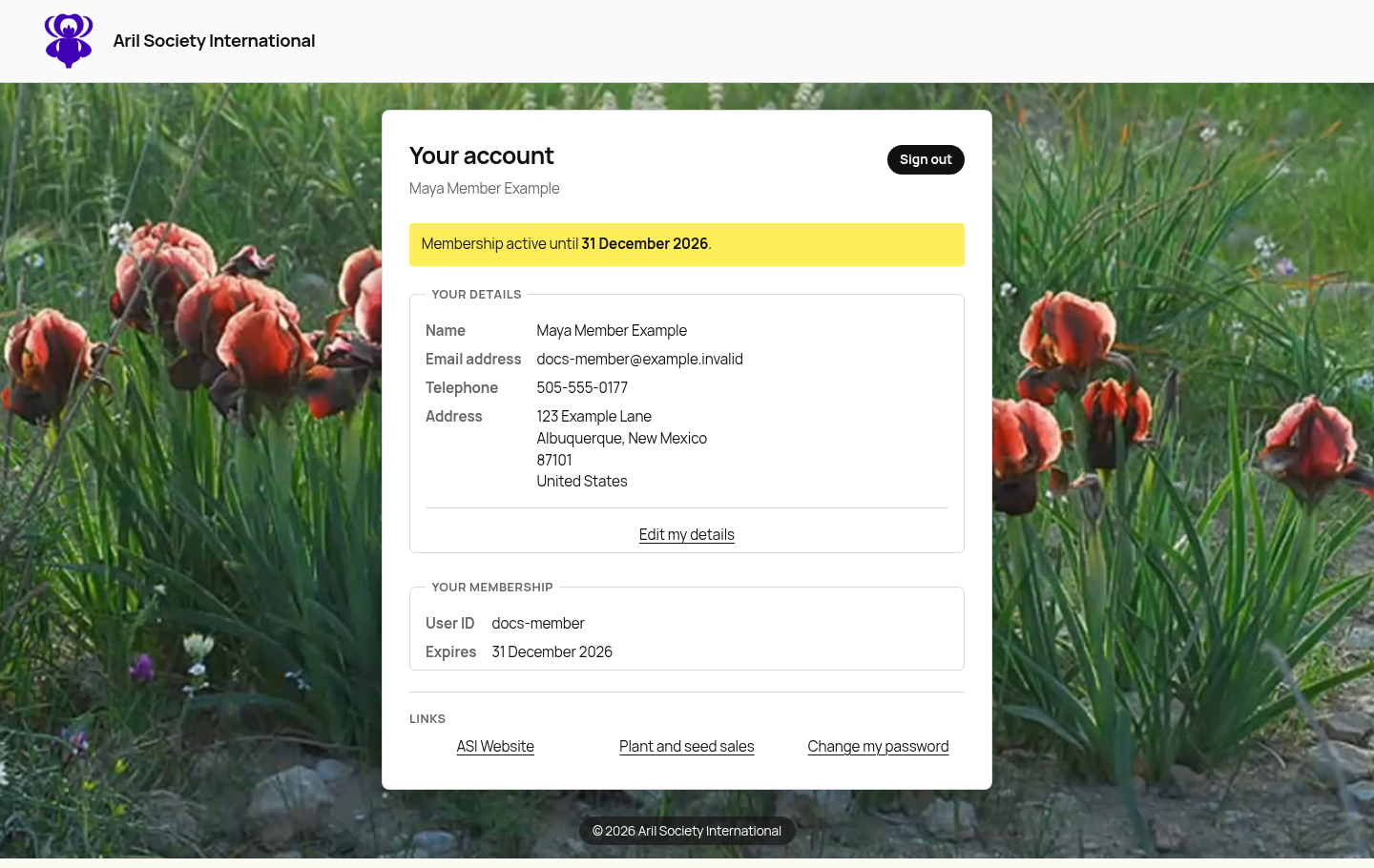
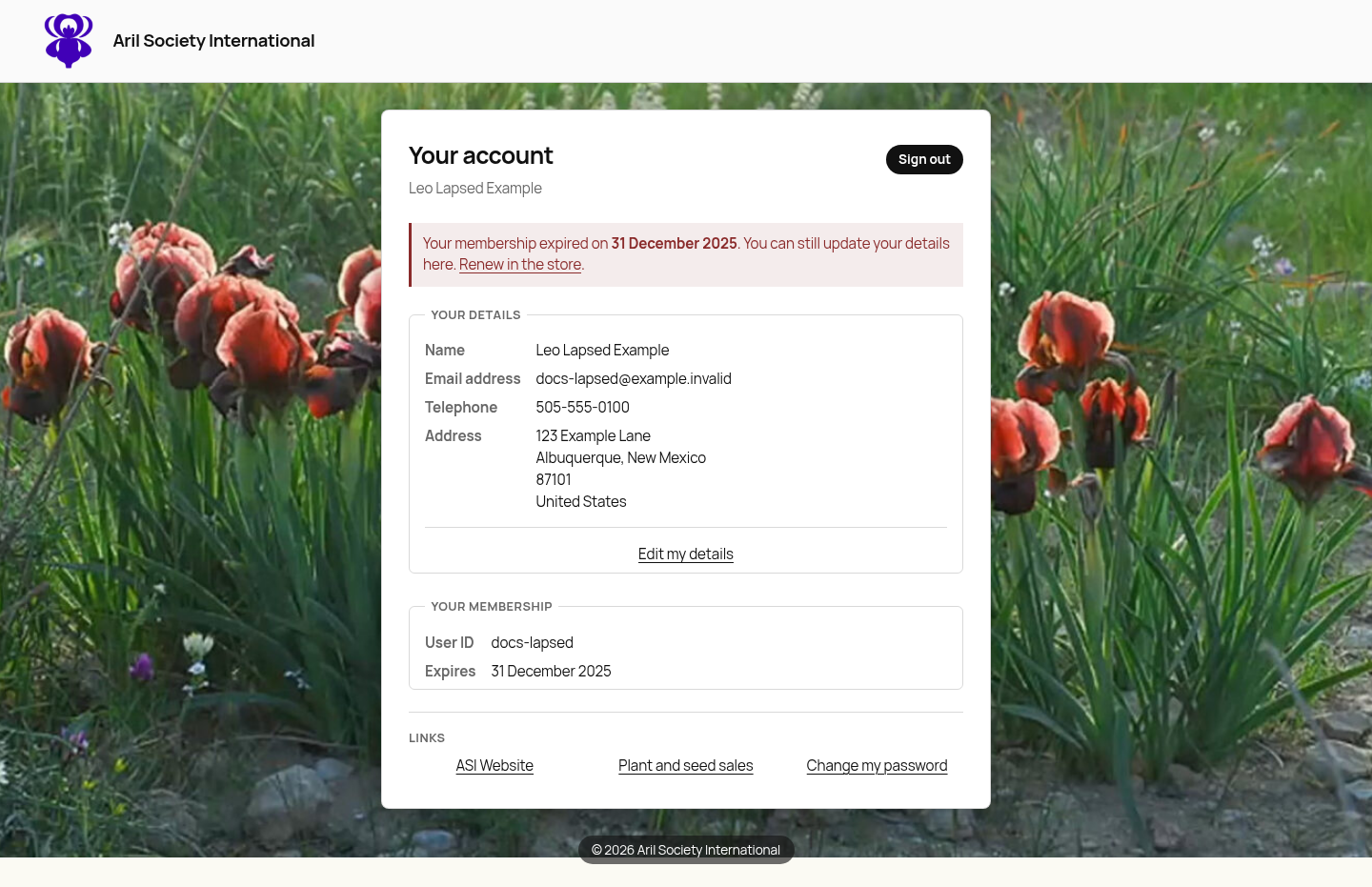
Your account shows your contact details, User ID and membership expiration information. Expiration is display-only. Ask membership staff if it needs correcting.
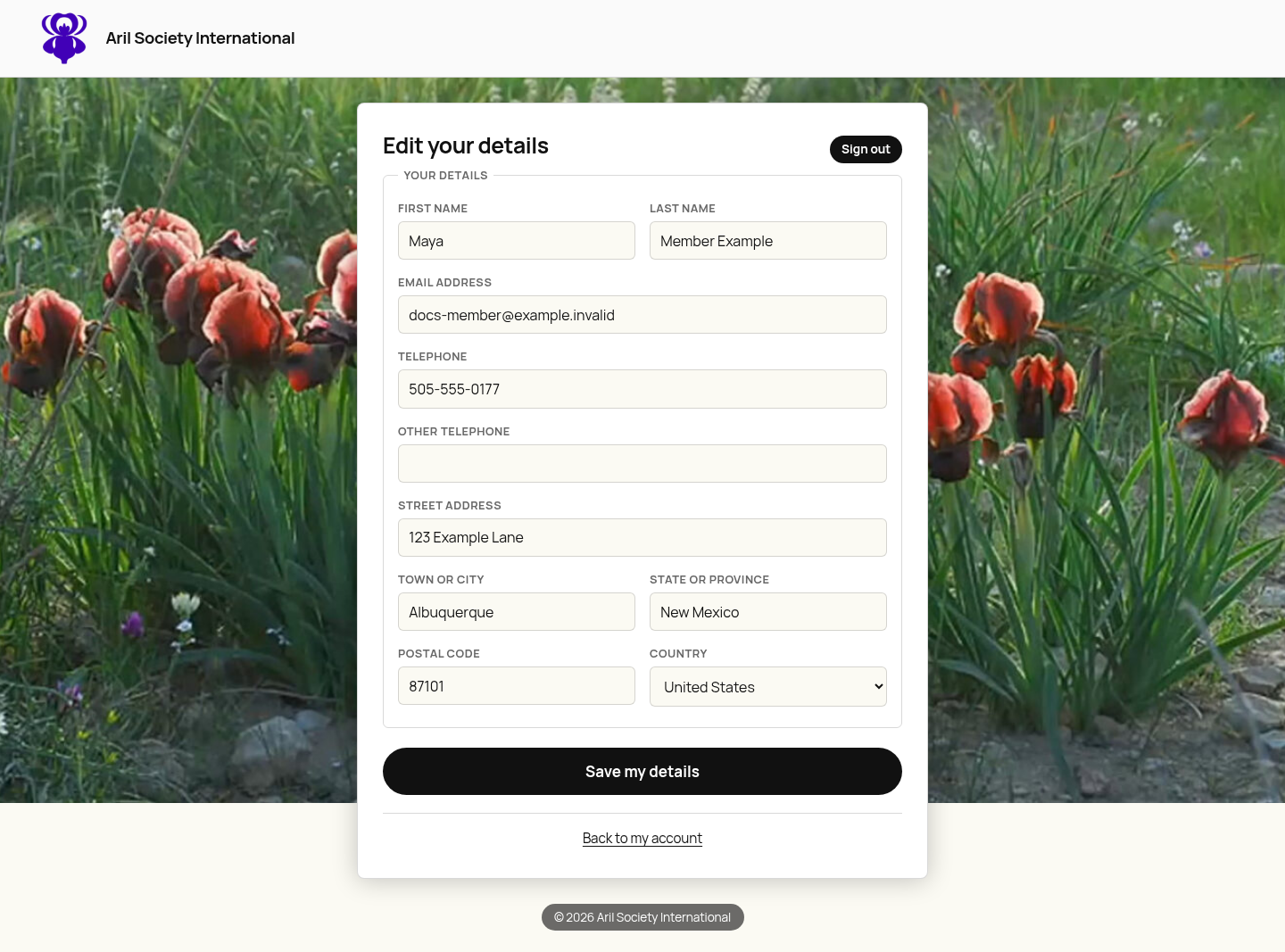
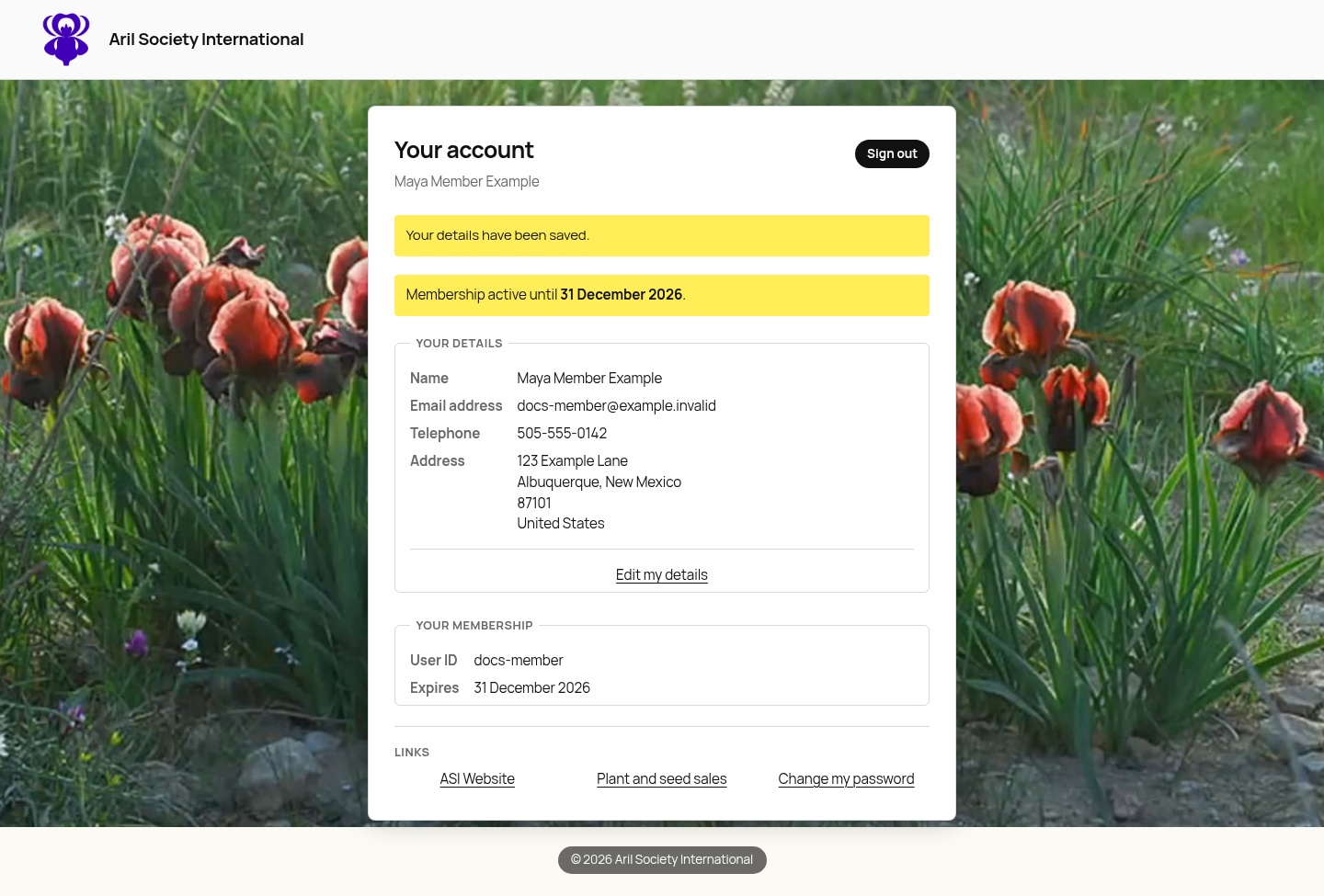
Select Edit my details to change your name, address, telephone numbers or email address. Saving returns you to the account page with a confirmation. Staff can inspect the change history.
5. Open the store
Select Plant and seed sales on your account page to open the store with the same sign-in. The shopping guide shows the store account, sale cart and renewal examples.
6. Sign out
Select Sign out on your ASI account or the website, or Logout in the shop. One action ends your ASI sessions in the current browser. The website, shop and staff tools require a new sign-in on their next protected request.
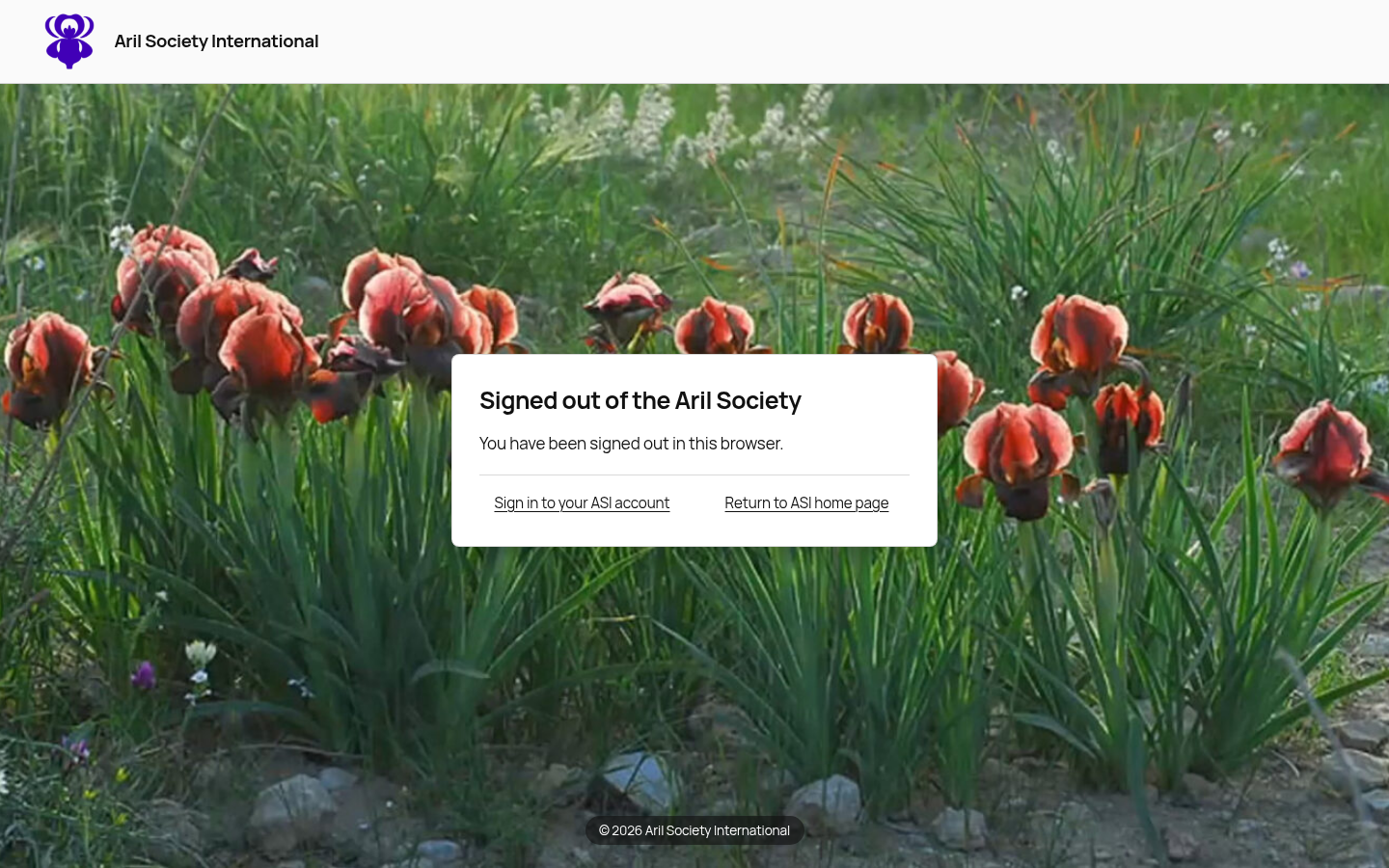
Every service shows the same ASI sign-out confirmation. Select Sign in to your ASI account to sign in again, or Return to ASI home page to return to the website.
You do not need to sign out separately from each service. An already-open page can remain visible, but refreshing it or attempting another protected action requires a new sign-in.
When membership has expired
Leo Lapsed Example can still sign in, view his expiration date and update contact details. He is offered renewal rather than losing his account.
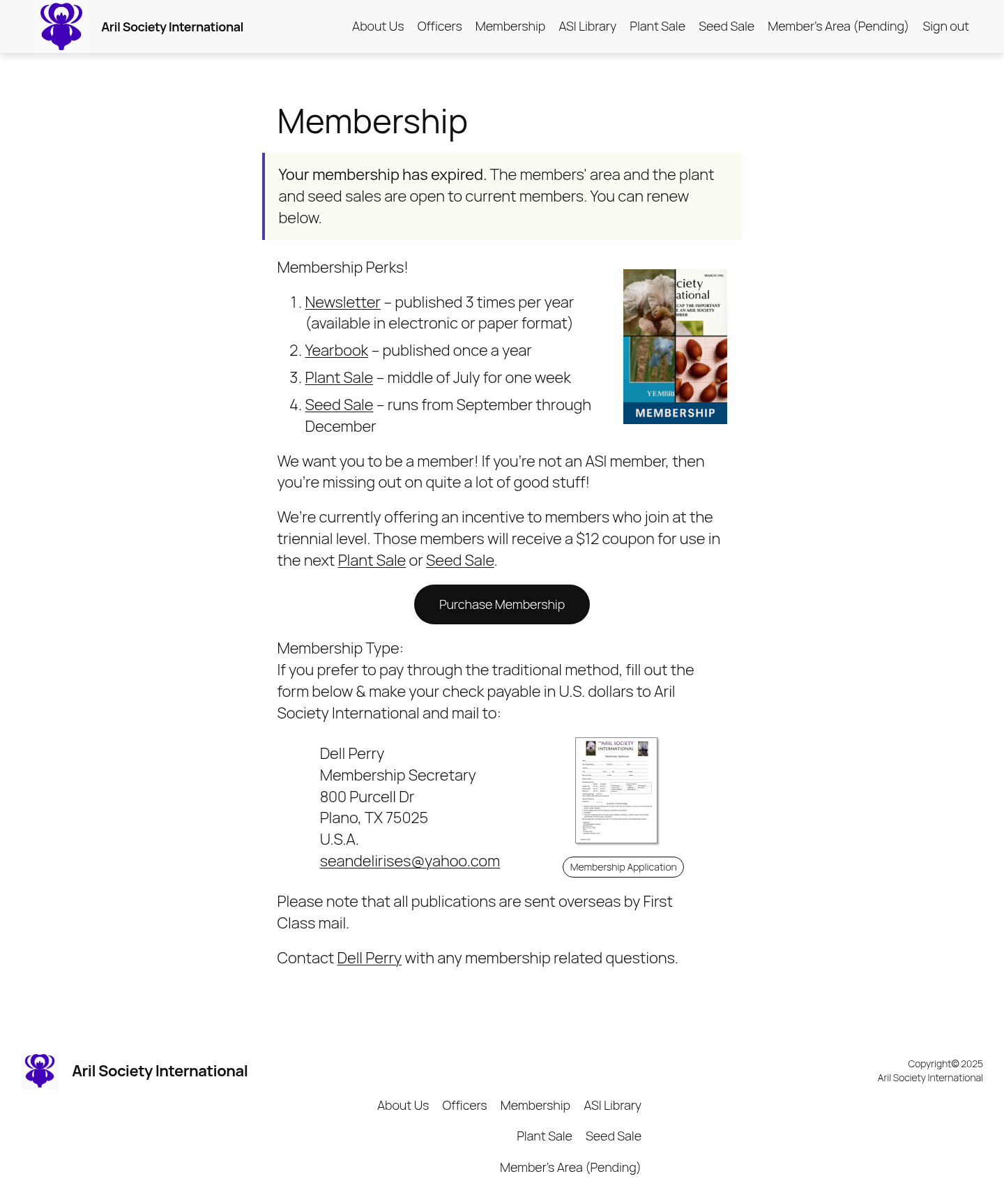
His Members Only request leads to the membership page with renewal guidance. The shopping guide shows how expired members can renew their membership.
A Life member's expiration is shown as Never.