Memberships
Use the new membership module to add offline memberships and adjust membership dates. A Membership admin can make these changes. See the module overview to sign in.
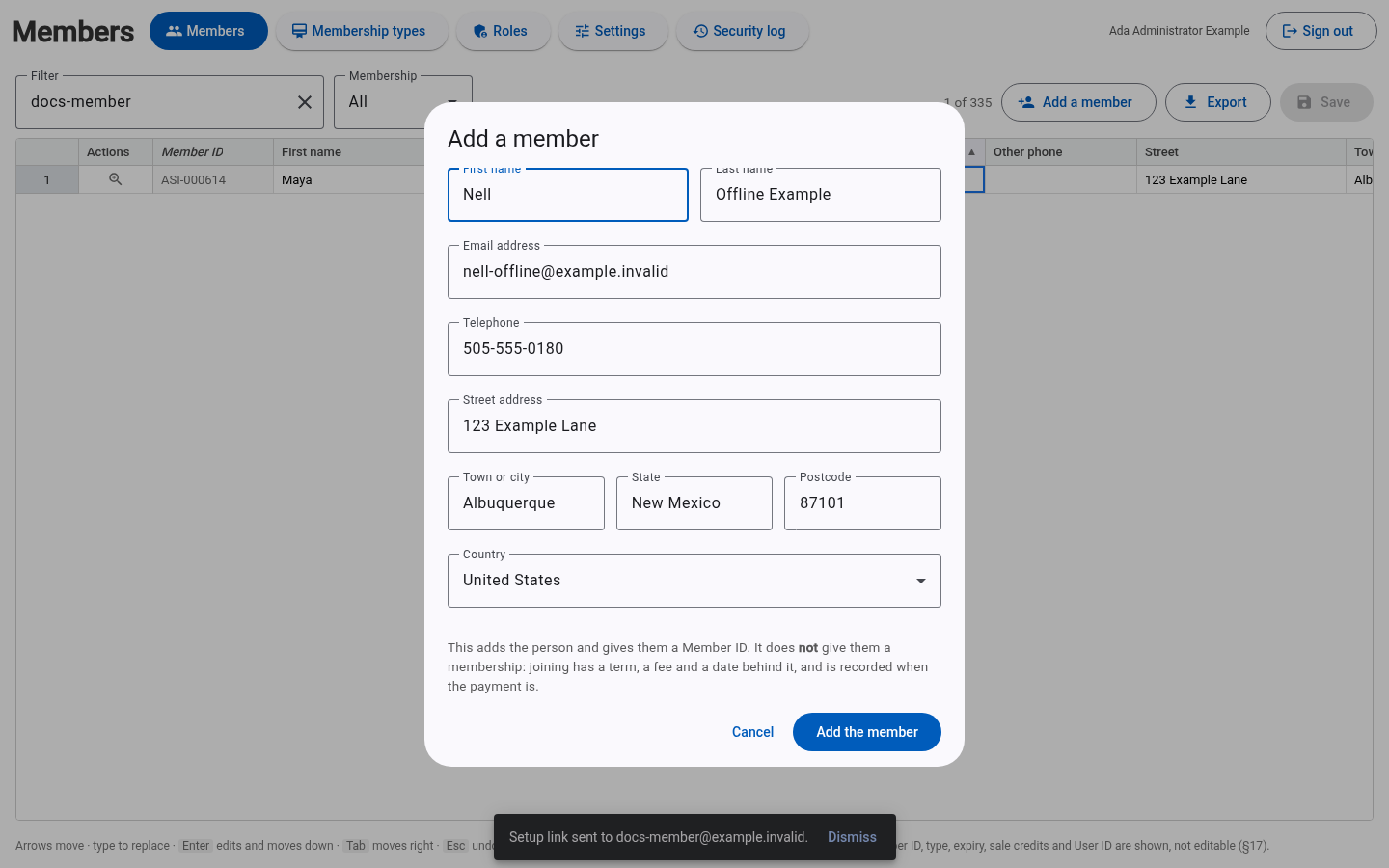
Add a member and record an offline membership
For a membership paid by cheque, telephone or at a show, a Membership admin first checks whether the person already has a record.
- If needed, select Add a member, enter their name and contact details, and select Add the member. This creates the person and assigns a Member ID; it does not grant a membership or access to Members Only.
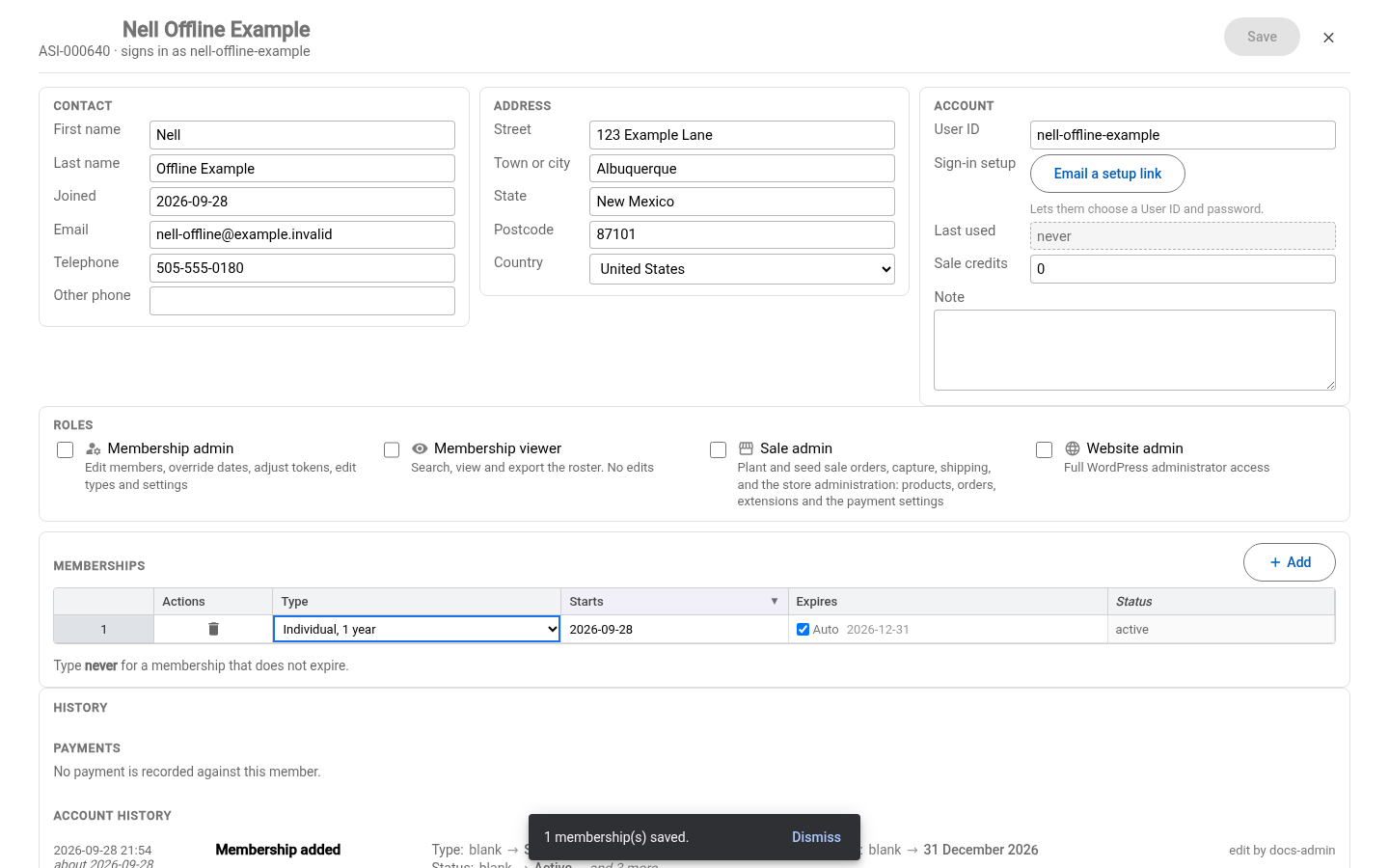
- Open Full record. For a new member, enter their Joined date. In Memberships, select Add and choose the purchased Type. Review the proposed Starts and Expires dates.
- Select Save to record the membership. Check the saved dates before closing.
- If they need to establish their sign-in, send a setup link as described in Account assistance.
Adjust memberships and expiration
A Membership admin edits membership rows under Full record, in Memberships. With Auto ticked in the Expires cell, the system derives expiry from the type, start date and configured membership rules. To choose a specific expiry, untick Auto and enter a date in YYYY-MM-DD format. Enter never for a perpetual membership. Select Save to apply changes.
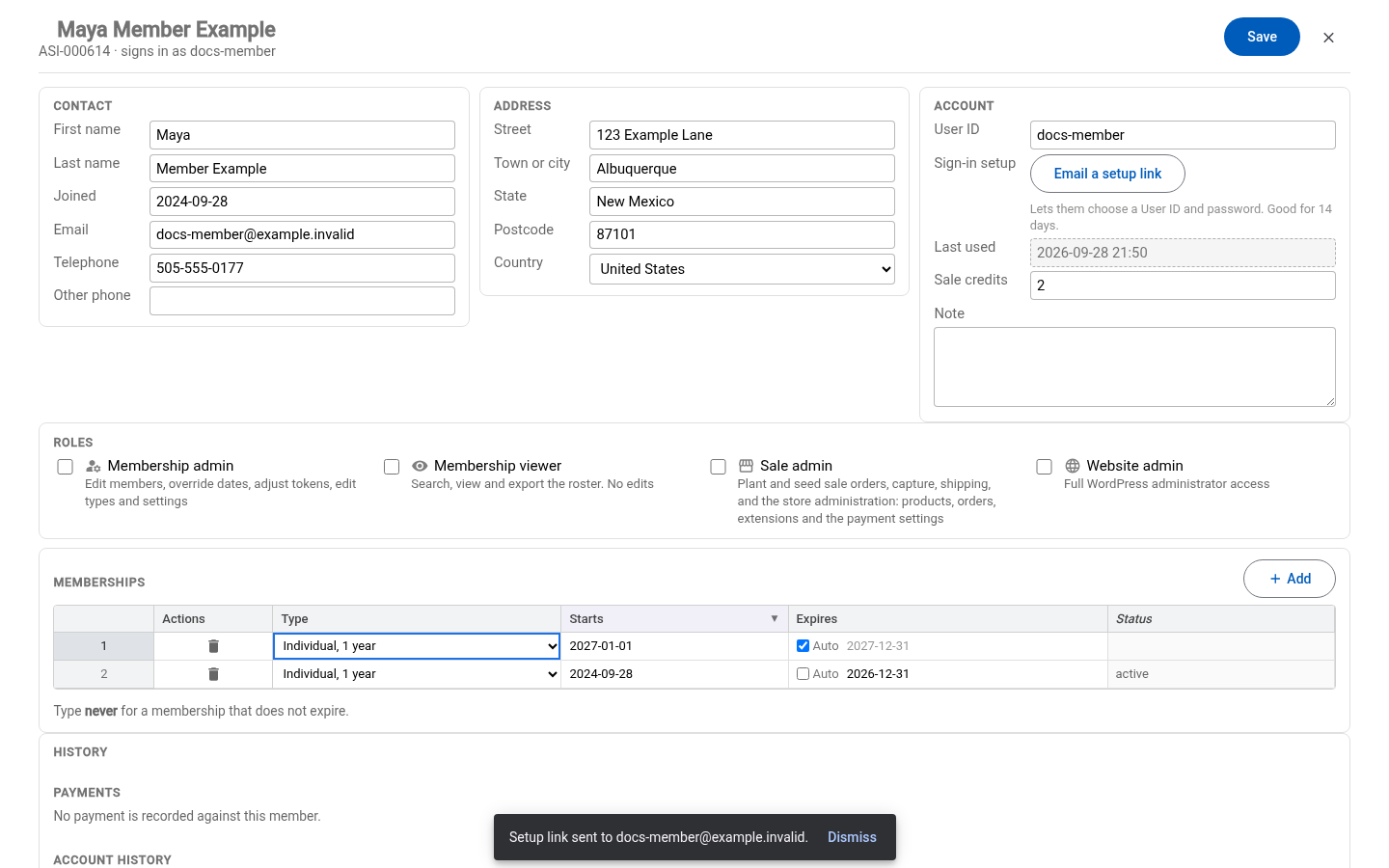
Adding a renewal proposes dates after the existing finite membership time. Mixed Print/Electronic purchases stack their time. Changing a type's rules later does not rewrite dates already granted to members.
Remove this membership deletes a saved membership immediately. Check the selected row before using it. Correcting or removing memberships changes eligibility on the next protected request. The roster's expiry is a summary of the member's memberships.