Recovery and account setup
These examples show account recovery on the proposed site. Email excerpts have their one-time links redacted.
Forgot User ID
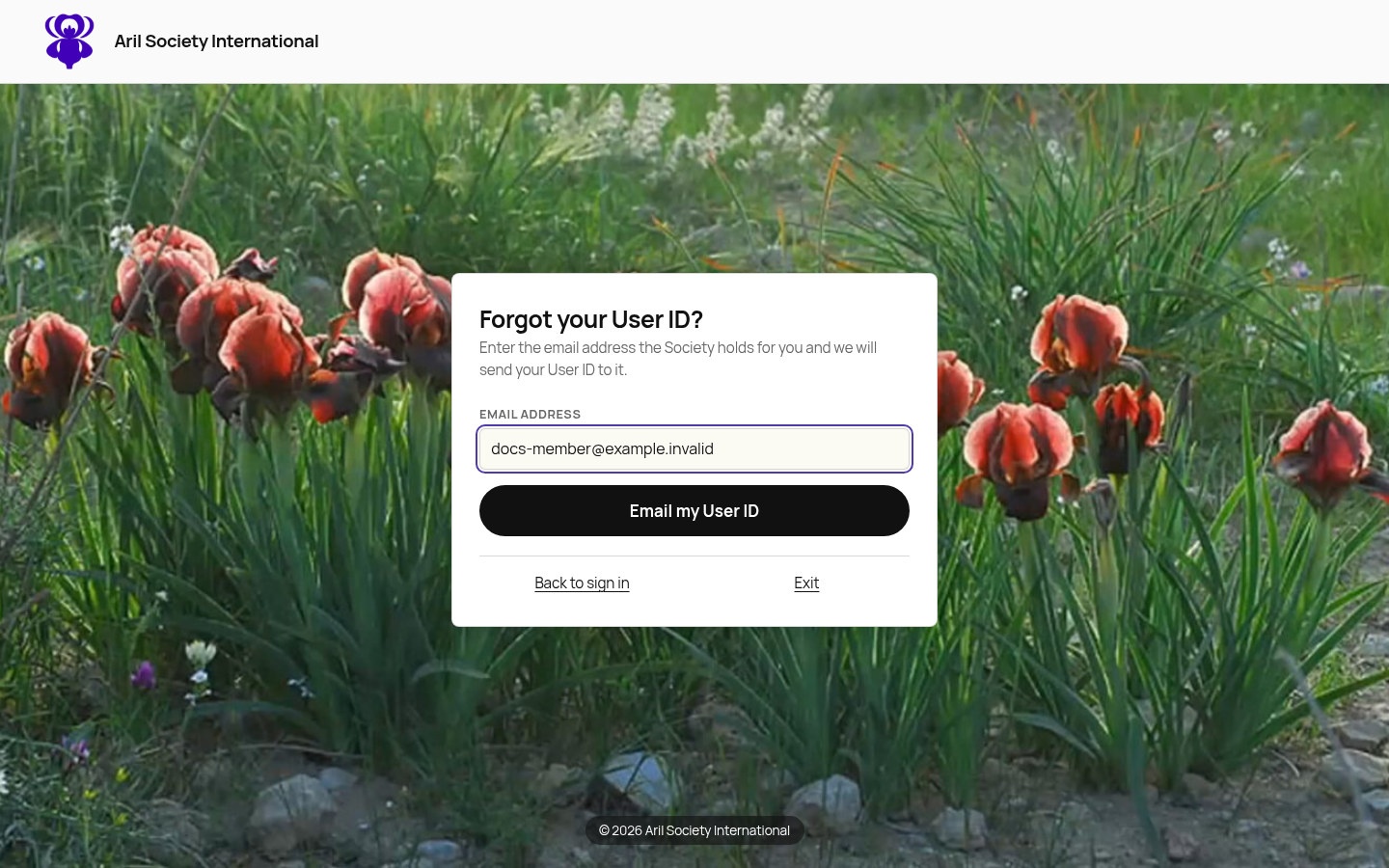
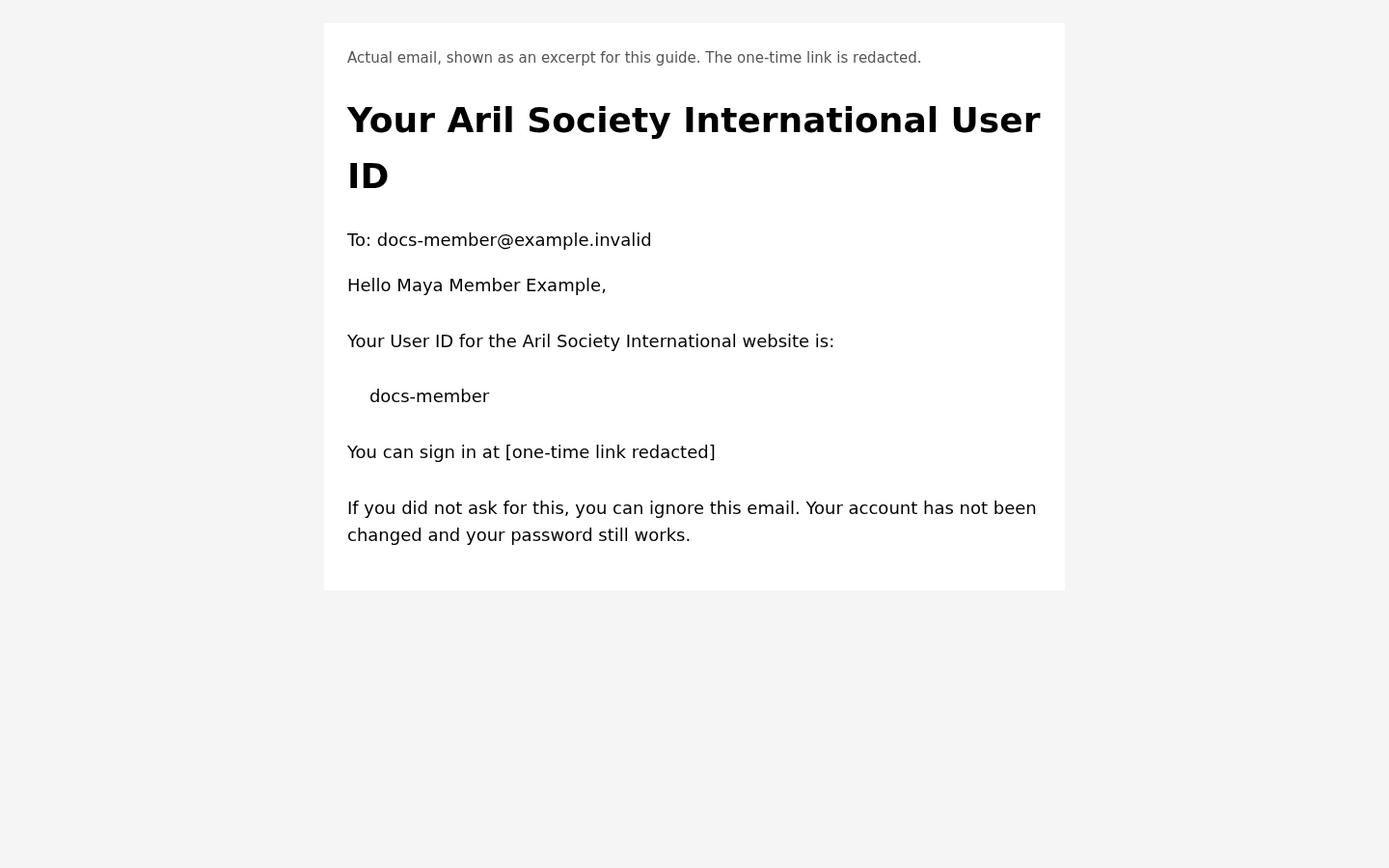
From Sign in, select Forgot User ID? and enter the email address the Society has on file. Select Email my User ID. The confirmation is the same whether or not the address is recognized. If it is recognized, the User ID goes to that address rather than appearing on the public screen.
Forgot password
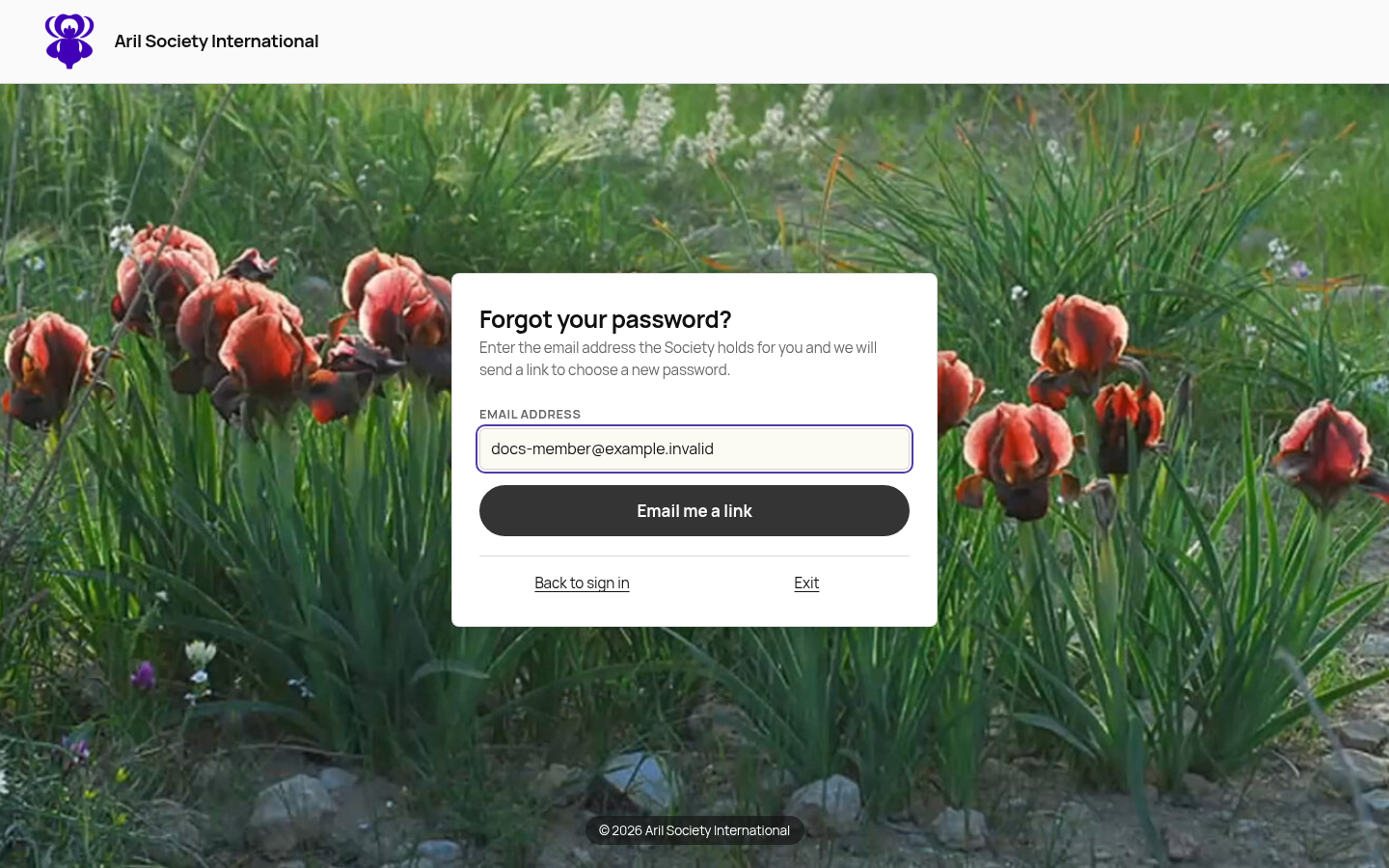
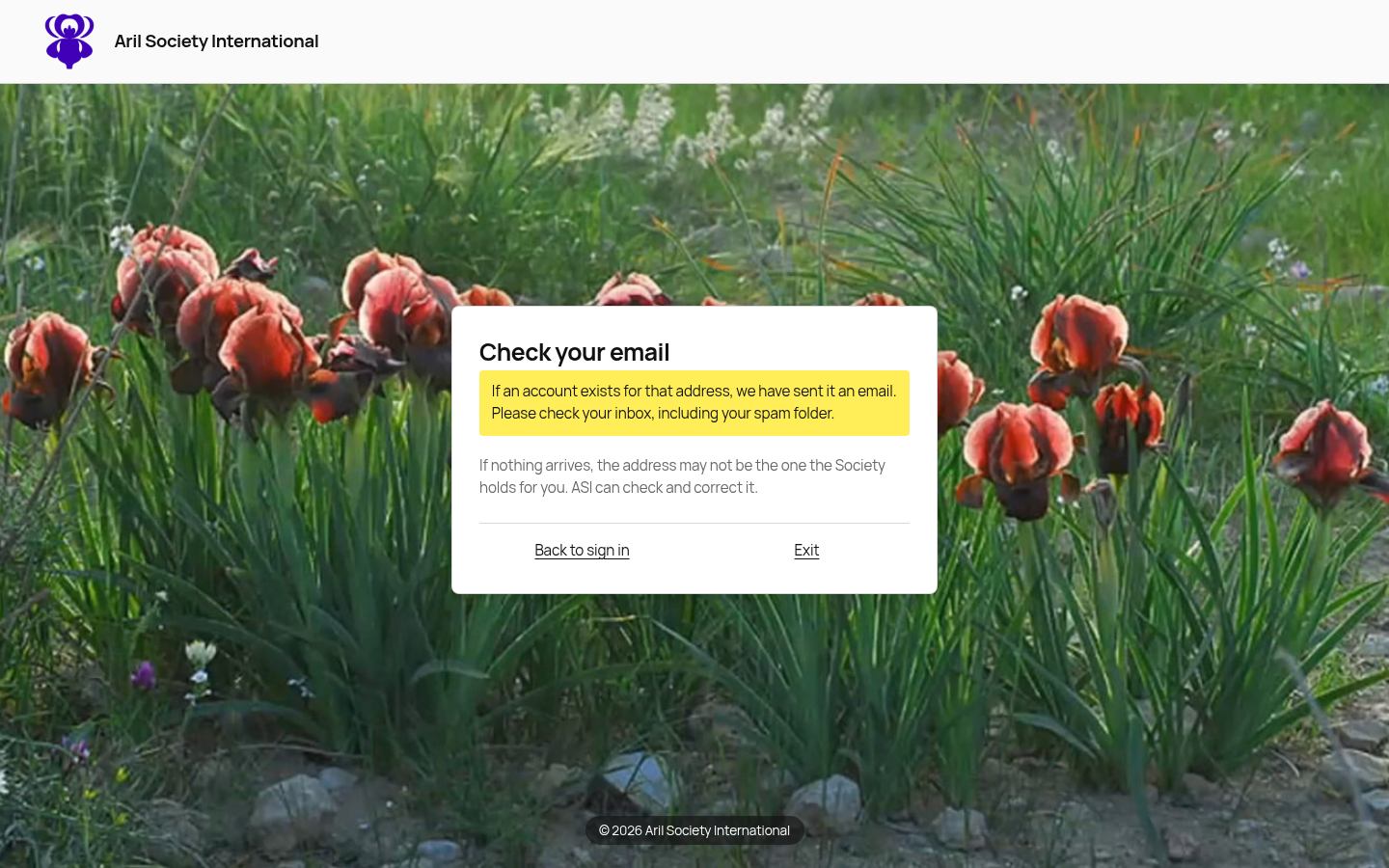
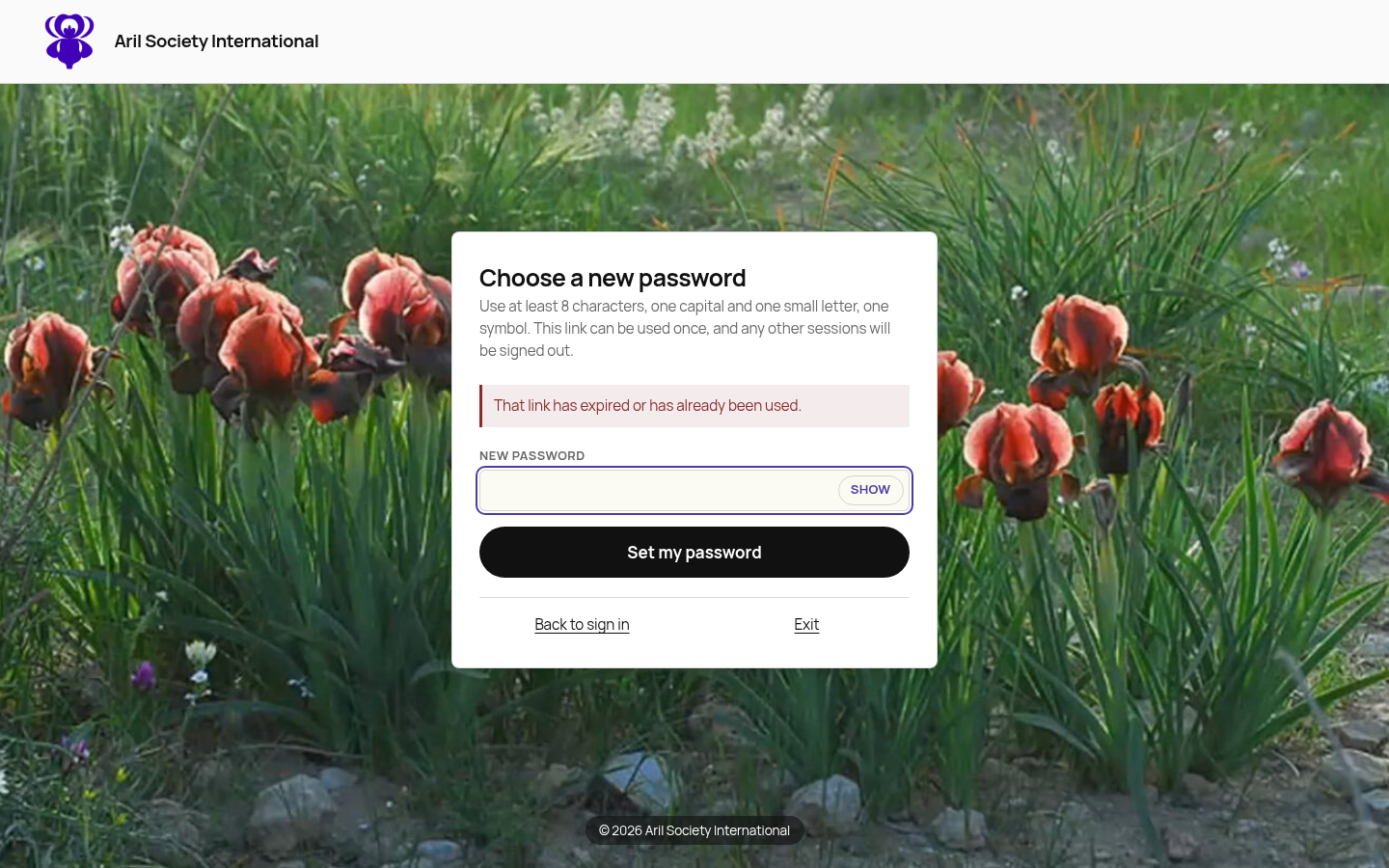
Select Forgot password?, enter your registered email address and select Email me a link. Check your inbox and spam folder. The screen does not disclose whether an account exists.
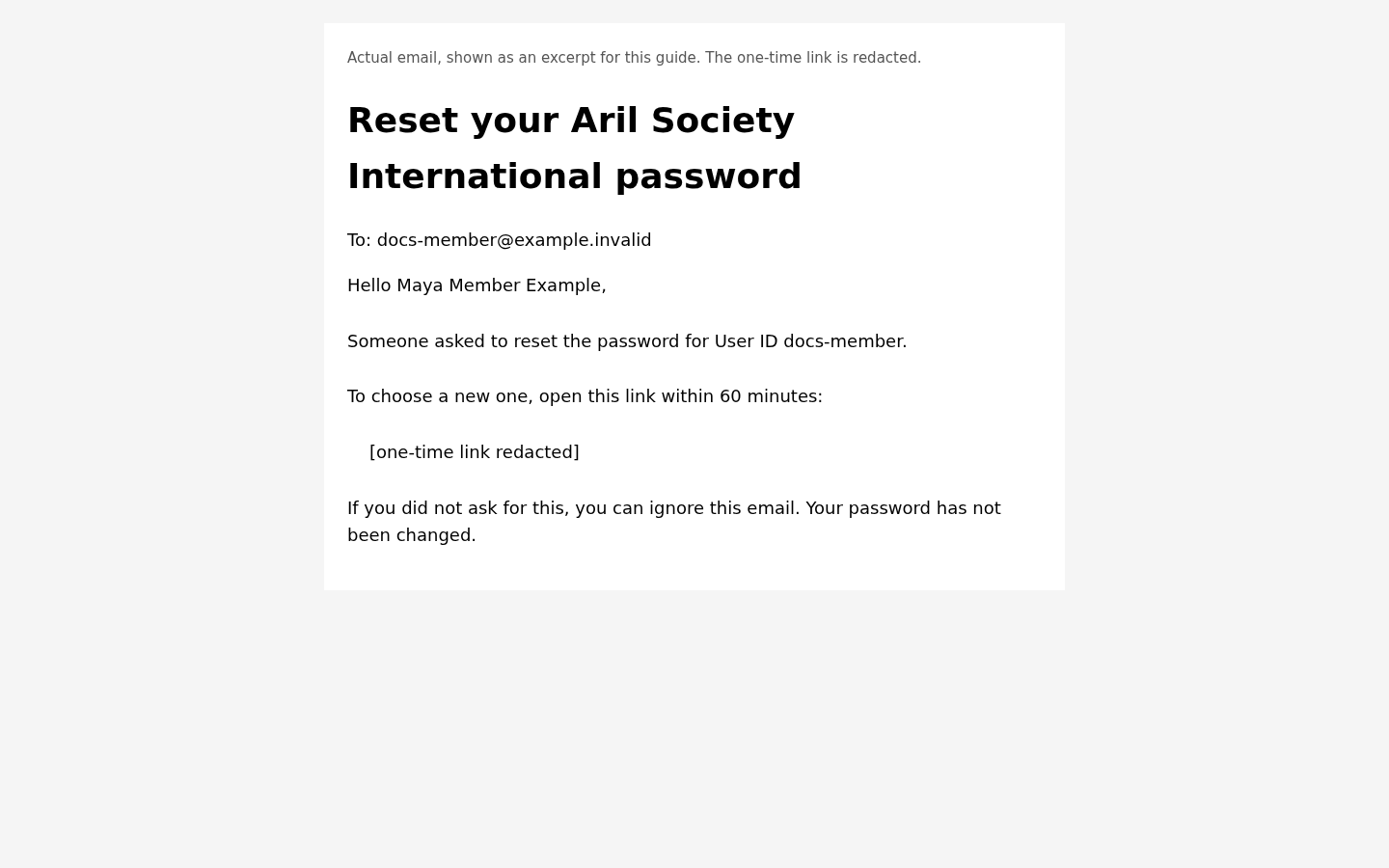
Open the emailed link and choose a password that meets the rules shown on the page. A weak password is refused without spending the link.
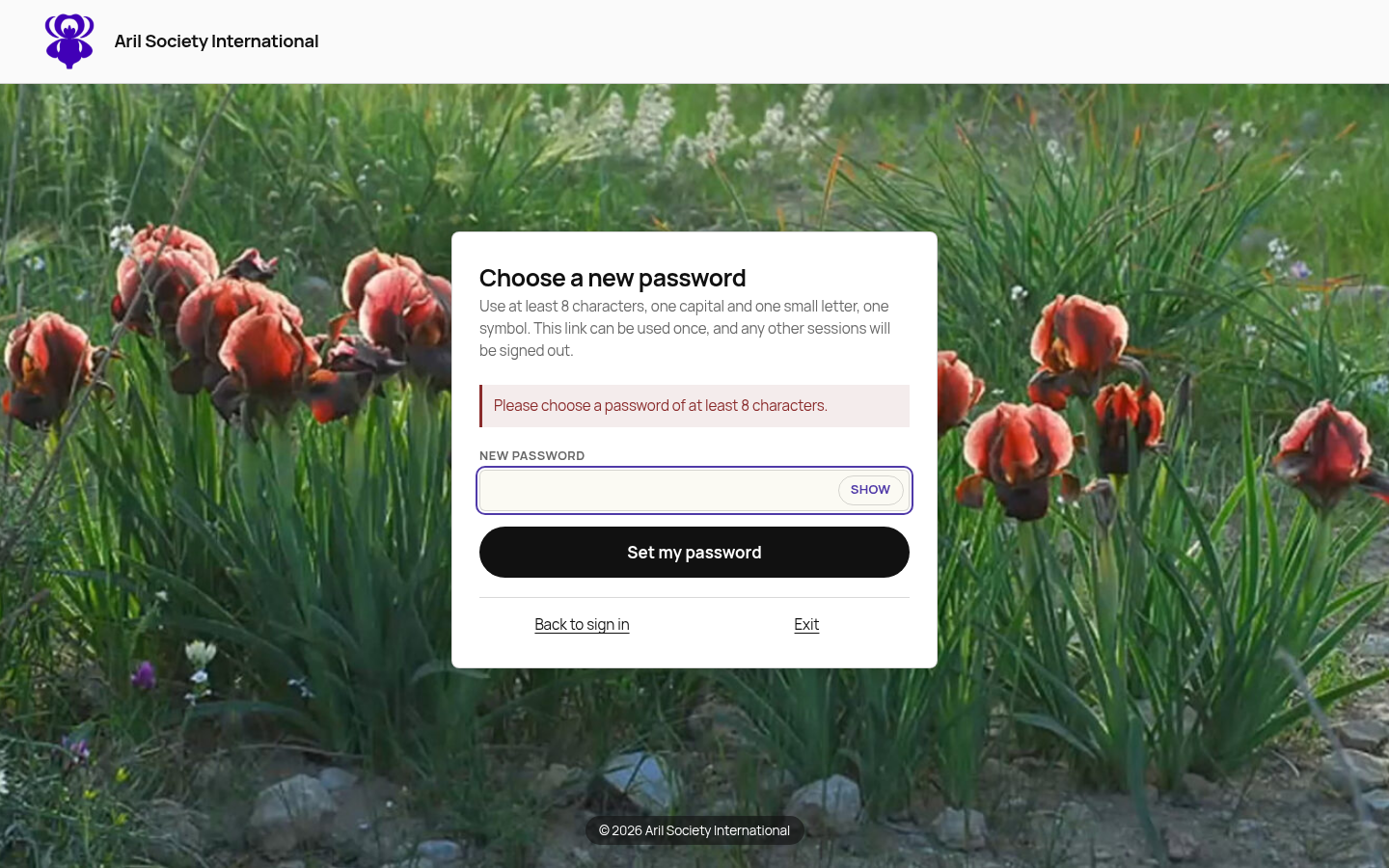
After a valid reset, sign in using the new password. Already-open sessions are revoked.
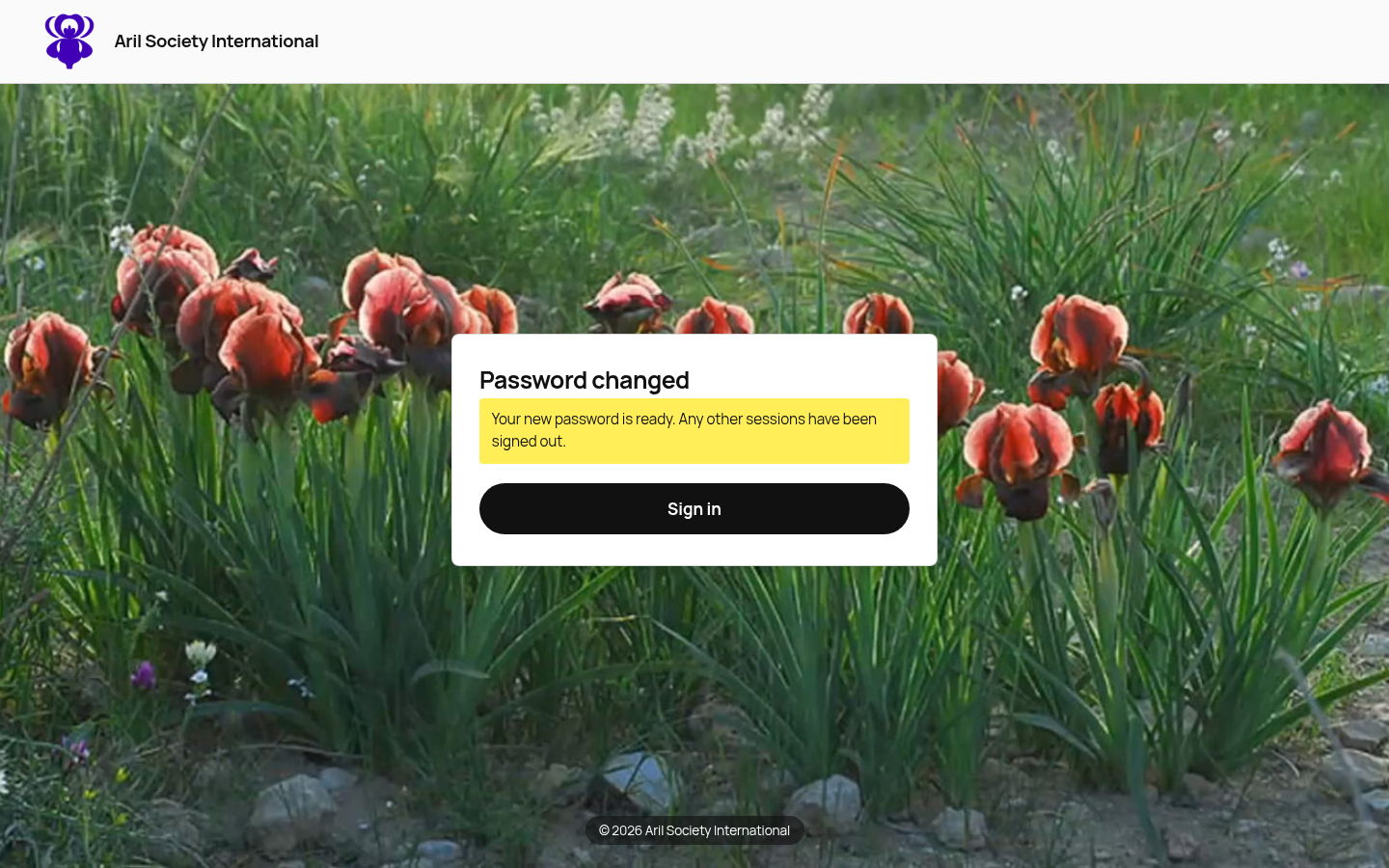
The reset link works once. A second submission with the same link is refused.
Set up a new account
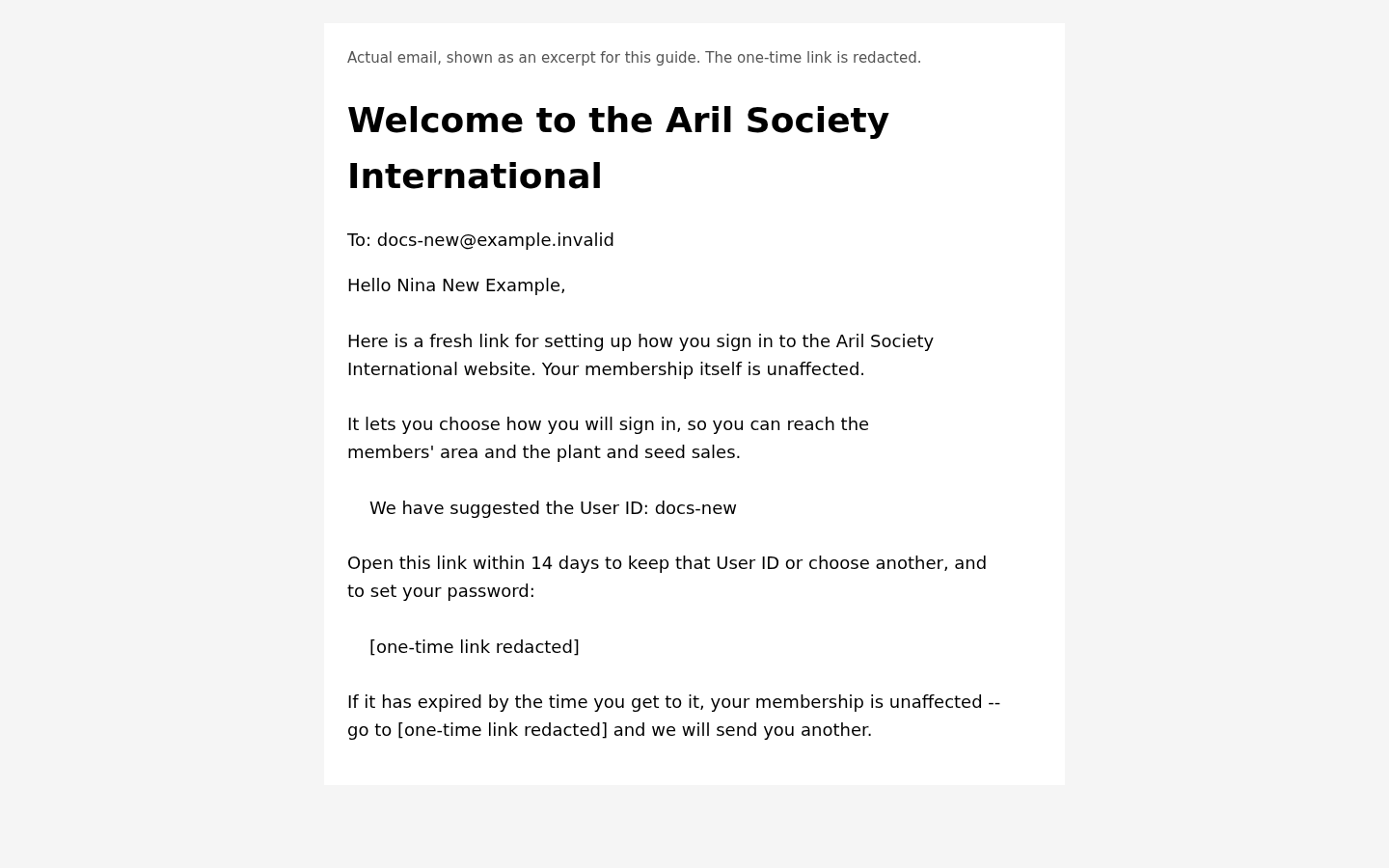
This example starts with an existing fictional membership. An administrator opens its member record and selects Email a setup link. The member receives a welcome message with a link to choose their sign-in details.
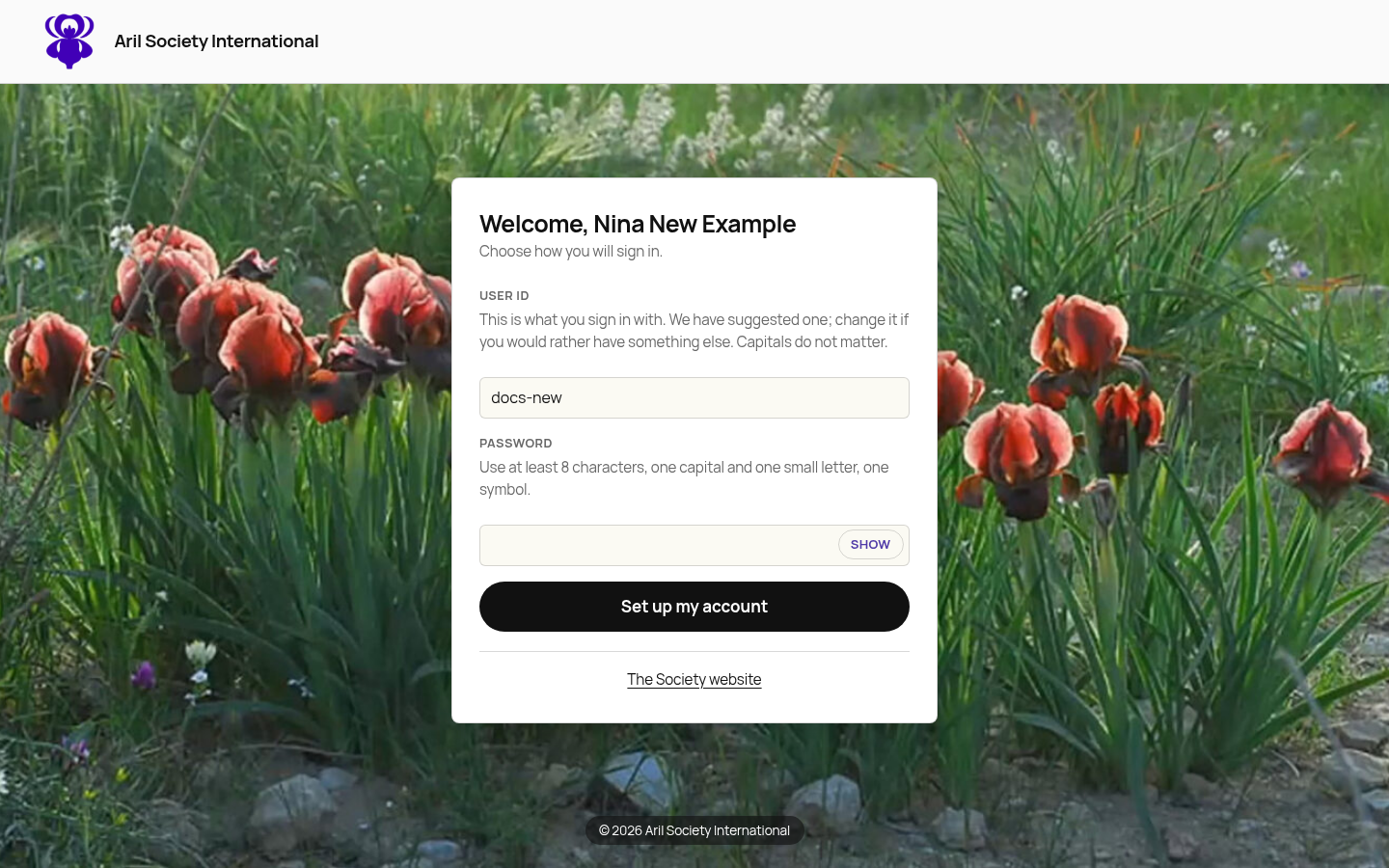
The emailed welcome page suggests a User ID. You can choose a different one and set your password. The same password rules apply.
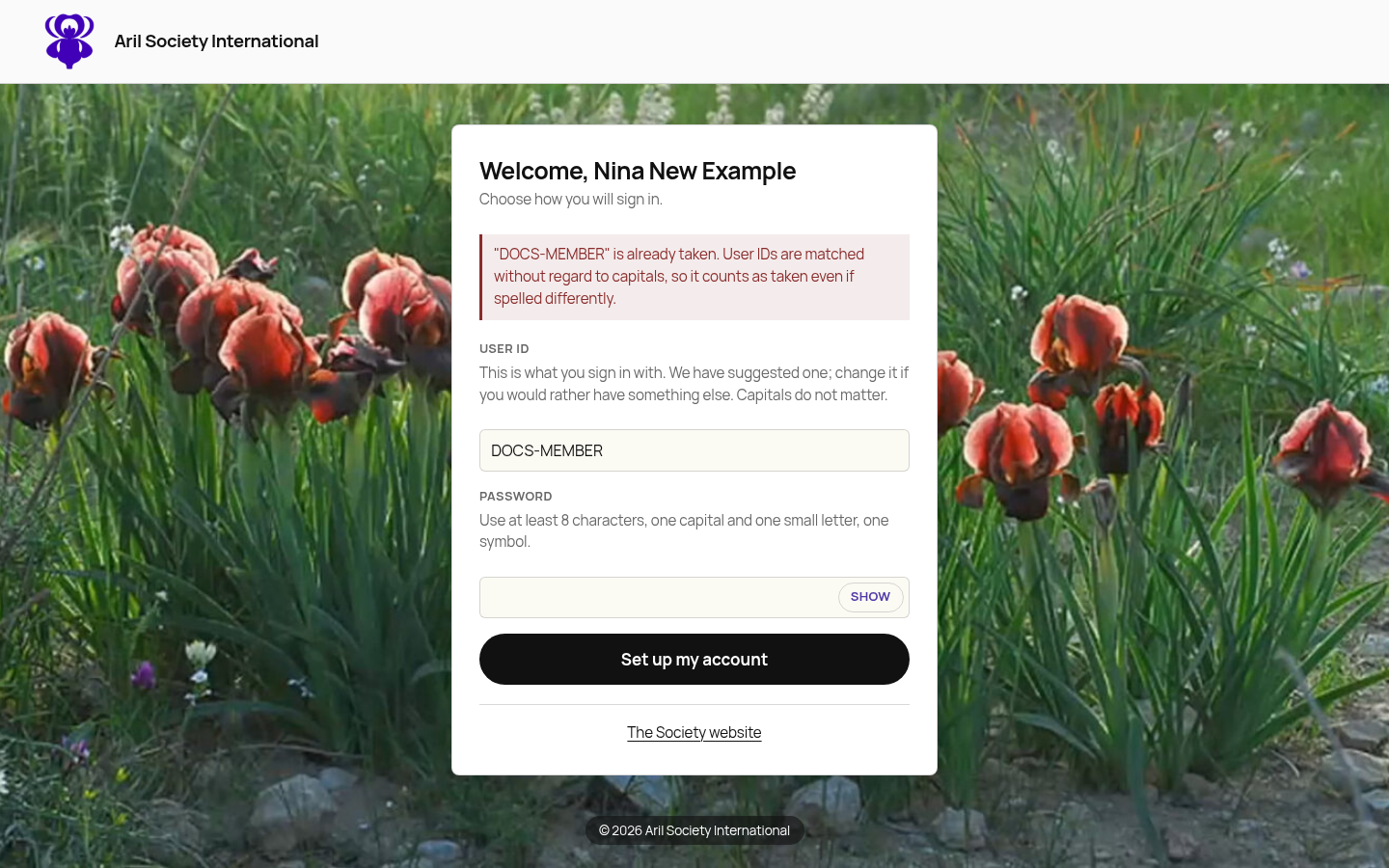
A User ID already held by another account is refused, including a version with different capitalization. Choose another User ID and submit again.
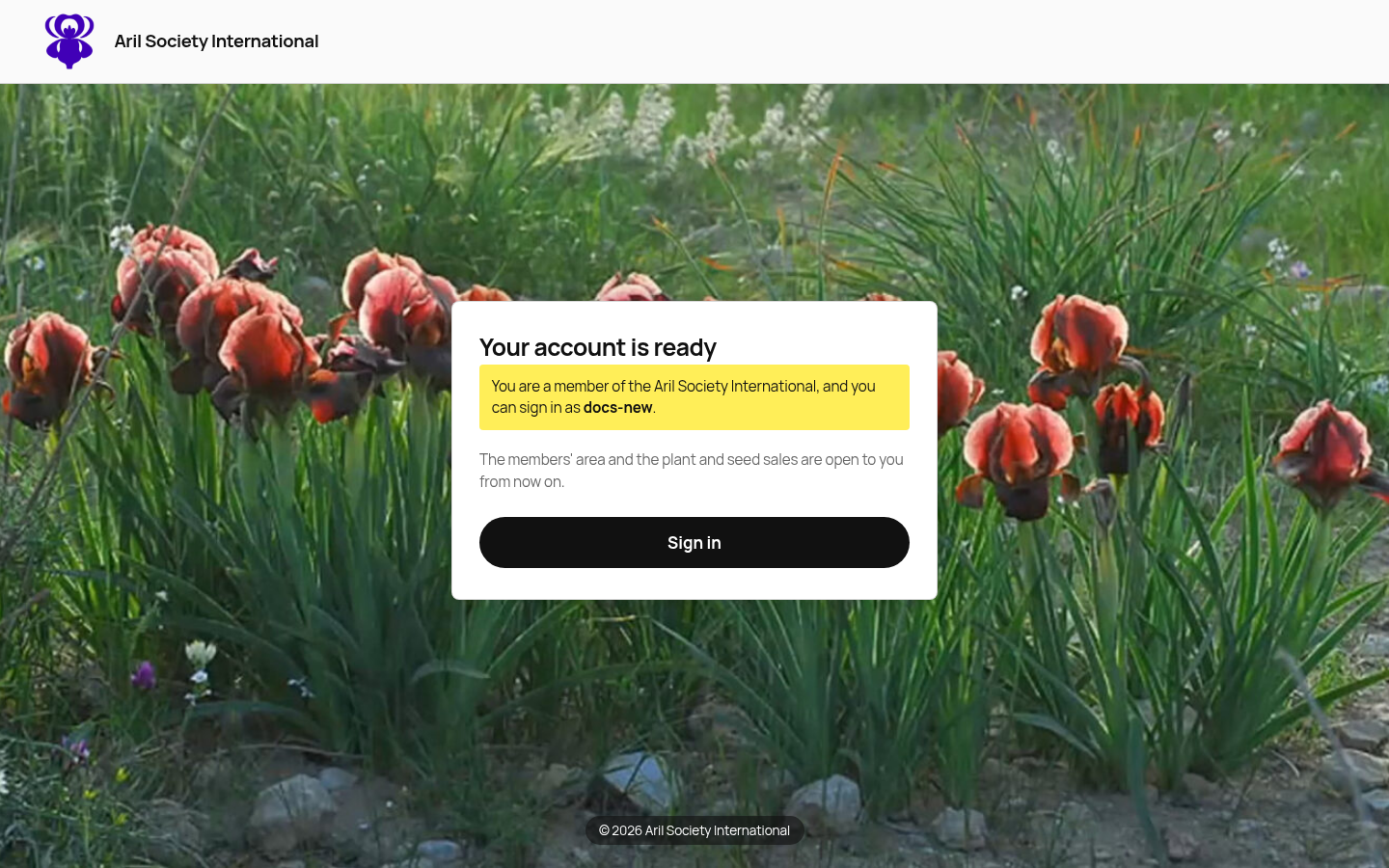
Successful setup confirms your chosen sign-in. You can now use it on the central sign-in screen. The welcome link cannot be reused.
If the welcome link has expired, use Forgot password? on Sign in to request a fresh password link. Use Forgot User ID? if you also need your User ID. Membership staff can resend a setup link after checking your email address.
Change a password while signed in
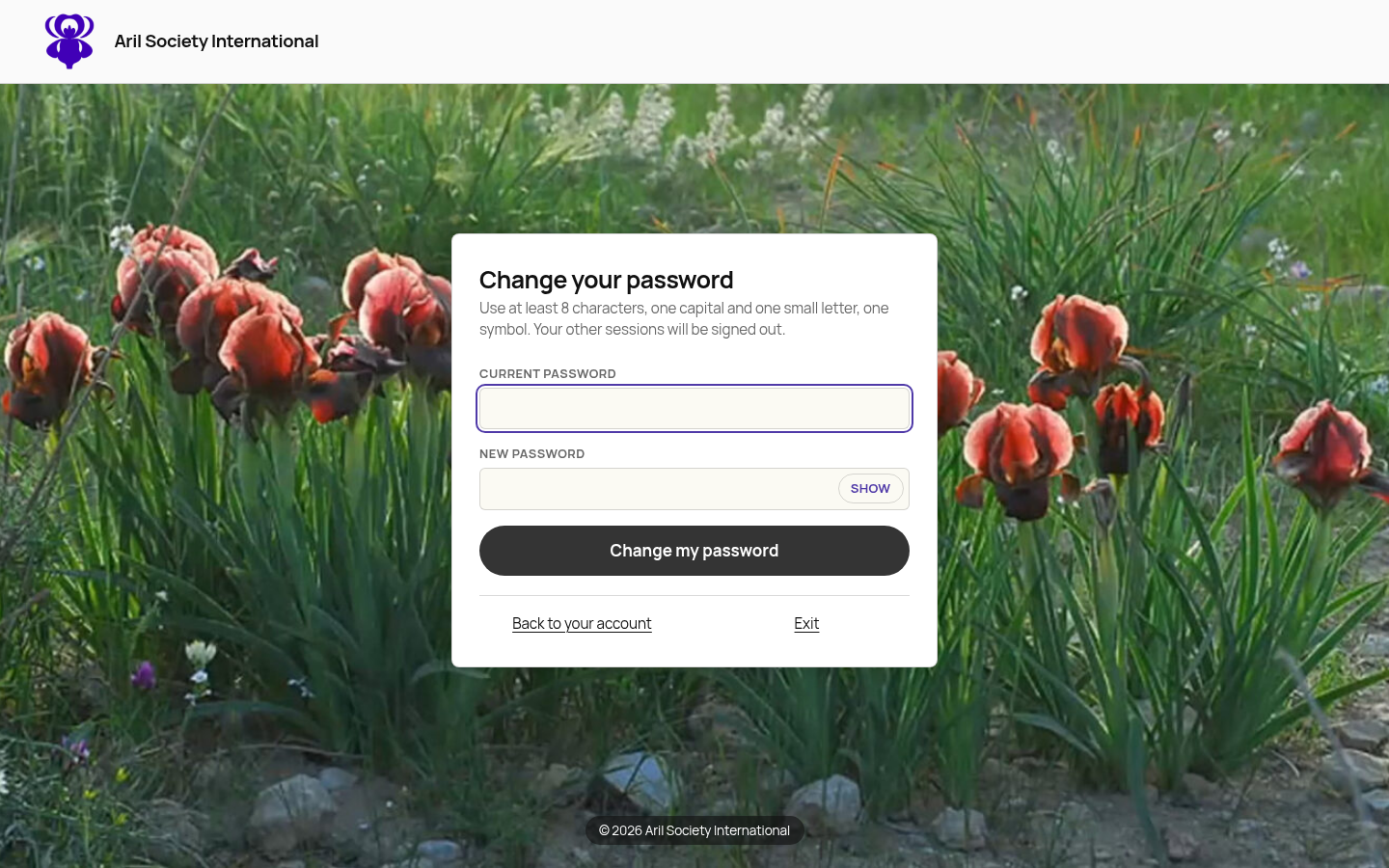
Select Change my password on your account page. Enter the current password and a new password meeting the displayed rules. The current password is required. A successful change ends other open sessions. Sign in again using the new password.
Temporary lockout
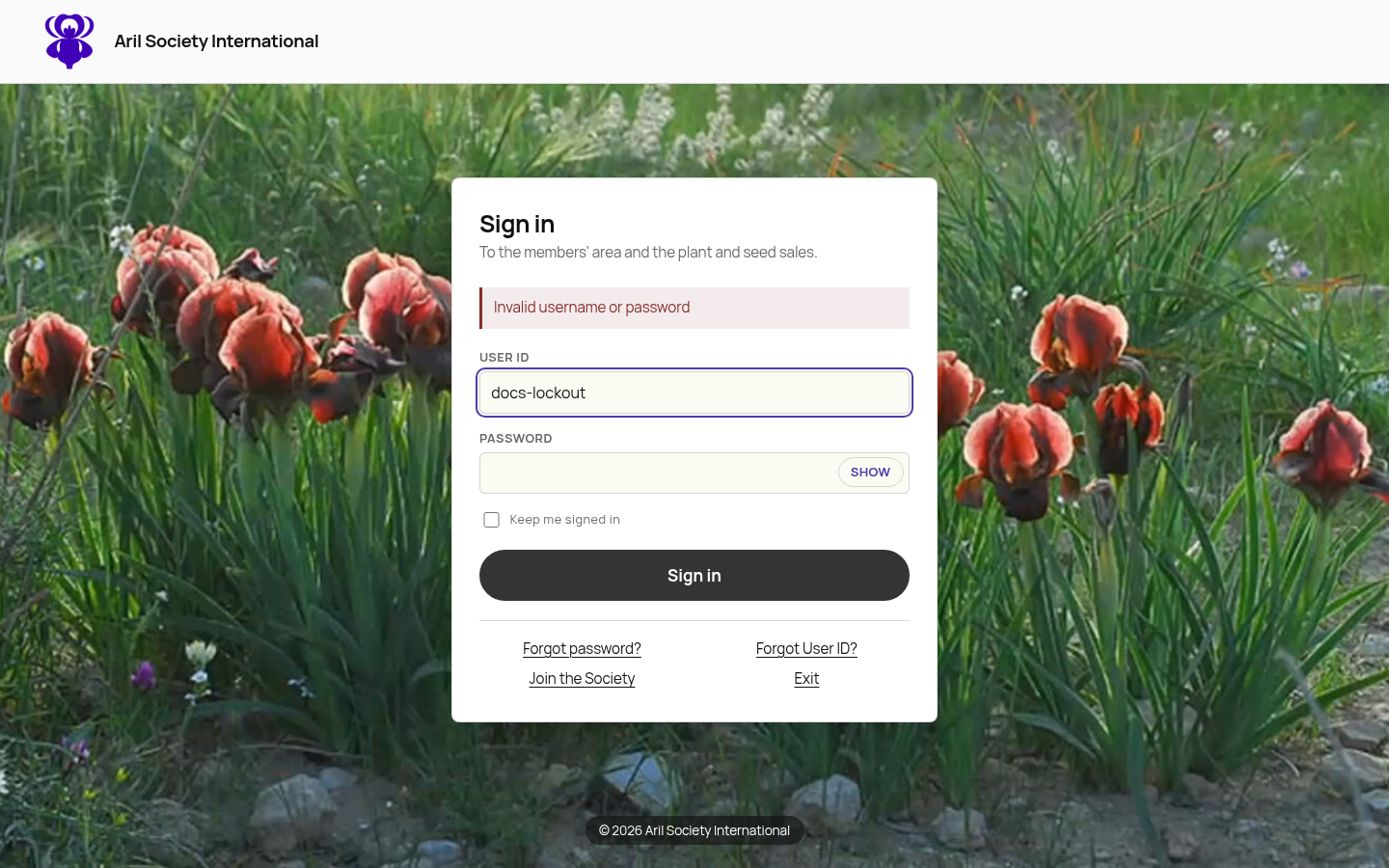
With the current settings, ten incorrect passwords cause a 15-minute lockout. While locked, sign-in is refused even with the correct password. Wait 15 minutes before trying again. If it still fails, use Forgot password? or contact membership staff.
How long sign-in lasts
A normal sign-in currently expires 30 days after signing in. Activity does not extend that deadline. Administrators can change the total lifetime and inactivity limit in Settings; a shorter inactivity limit can require sign-in sooner. With Keep me signed in checked, there is no automatic expiry. Signing out, changing or resetting your password, or having your account disabled can still end access.